Lessons
VerkLabs can teach you as you work. A lesson is a guided walk-through that sits beside your own project and helps you build something real in it, one small step at a time. Nothing is a mock-up: the tracks, notes and instruments the lesson sets up are ordinary parts of your project, and you can play with them, change them and keep them when you are done.
Lessons are grouped by what they teach. Each step also says briefly why it works, so you come away knowing what each part is for.
Start a lesson now to open the Learn window in the editor.
Click the name of any lesson below to start it in a new project. Every lesson also has a Follow the coach version, in which the coach does the lesson for you while a voice explains each step: choose Follow the coach in the Learn window, or click ▶ in a lesson, and click I’ll take it from here whenever you want to carry on yourself.
The Lessons
The Learn window groups the lessons into paths, each a short run of lessons that build on each other. Start at the top of a path and work down, or pick any lesson: nothing is locked. A new learner is offered a good first lesson at the top of the window, and after that it suggests the next one in the path you were last working in.
Objects and materials
Shaders and 3D: color, light, movement, and an object that answers your mouse, key or hand. None of it needs experience of nodes, apart from the last lesson, which is for people who already write Shadertoy shaders.
- What a shader is (about 30 minutes) shows what a shader really is: one small program that the graphics card runs for every pixel at the same time, knowing only where it is. You color a ball from each pixel’s position, add time, and make stripes by repeating a number.
- Corners and pixels (about 35 minutes) introduces the two kinds of shader. With the wireframe on, you see the corners of a low-detail ball, cut a razor-sharp color line through its triangles, bump the surface by moving the corners with noise, and add more corners to make the bumps smooth.
- Build a living shader (about an hour and a half) colors a 3D sphere with a graph of small nodes. It starts with one color, then blends two and makes the blend move. Then it adds stripes that slide and noise that decides the blend, lights the surface and gives it a glowing edge, puts it on a lit floor with a shadow, moves the sphere and the camera, and finally makes the whole thing pulse with a beat.
- Patterns from position (about 35 minutes) makes patterns from nothing but where each pixel is: the distance from the middle, rings with fract, sharp edges with Step, soft ones with Smooth Step, and rings that travel with time.
- Ripples that catch the light (about 30 minutes) deforms a lit ball with the vertex shader: ripples built from each corner’s height, shaded correctly because the surface direction follows the deformation, and then set travelling.
- Noise without memory (about 30 minutes) is about randomness in a shader: static, a flicker made by changing the input, and smooth drifting noise, and why a shader’s random numbers hold still until the input changes.
- A cloud of particles (about 40 minutes) works with thousands of points: each particle gets a color of its own, rises in an endless stream, shrinks as it goes and swells with the music. Every particle runs the same program and none can see the others, which is why it is the clearest look at what a vertex shader does.
- Say it in one node: function nodes (about 30 minutes) turns a chain of three math nodes into one line in a function node. You write the expression, add a number as an input, give the inputs names, and let time move it. It is the way most people do math in a graph; the Function Nodes chapter is the reference.
- Your first code node (about 30 minutes) is where you write a node yourself: a short GLSL function that makes rings, wired like any node, and then changed to draw diamonds.
- Make it respond to you (about 40 minutes) is about input. The mouse changes a sphere’s color (left to right) and size (up and down), a key makes it flash, and, if you have a webcam, your index finger takes the mouse’s place. It shows that any input is a number carried by a wire, and that a node belongs either to the shape or to the color, never to both.
- Click and key effects (about 30 minutes) gives a lit sphere effects you trigger: a click that changes its color, a spotlight that follows the mouse and shines only while you hold the button, and a key that swaps the spotlight’s color. It switches camera navigation off so the mouse can be an input, and ends on why such effects vanish the moment you let go.
- See the numbers: debug with Print Number (about 30 minutes) is about finding out what a graph really does. You print a number on the object, first the time and then the mouse, read the result of a function, find that a circle fills its panel too soon, fix it, and make the readout show only while you hold a key.
- Color you can control (about 35 minutes) is about color as hue, saturation and lightness. You build a color map from the position of each pixel, grade it with Saturation, Contrast and Gamma, and use a selector to switch between four looks, chosen with the mouse.
- Spin, tile and warp: UV operations (about 35 minutes) changes the position that a pattern is made from. A rainbow checkerboard is spun with Rotate, repeated with Tile, rippled with UV noise and broken up by a block glitch.
- Remember the last frame (about 40 minutes) uses the State nodes to give particles a memory. A cloud climbs from where it was, lands on a floor, remembers how fast it is falling, and bounces.
- Trails and echoes (about 35 minutes) uses Feedback, the last frame as an image. A ball leaves a path that fades, takes on a color, curls into a spiral, and then follows the mouse like a brush.
- Materials with attitude (about 35 minutes) gives a ball a glossy material, a glowing rim and an oil-slick sheen that shifts as you look from another side, and lets a floor melt into the background with fog. Each is a node that changes a color depending on the light, the angle or the distance.
- Orbits: a small solar system (about 35 minutes) moves things round each other with the Orbit and Rotation nodes: a planet on a tilted ellipse round a sun, a spinning satellite round the planet, and a comet. The order of the nodes is the order of the movements.
- Move things on the timeline (about 35 minutes) puts the Runsheet in charge of an object. On the Motion track, a Move, a Turn and a Scale event make a striped ball rise, spin, grow and shrink, eased so they start and stop gently, and then bring it back so the piece loops. It shows that events on separate tracks run together, and that a change stays once its event has ended.
- Direct the camera (about 35 minutes) is about camera events: a Move that carries the camera to one side and lets the ball slide out of view, a Look At that keeps it in the middle, an Orbit round it, a Zoom to finish, and the ease that makes it feel like a real camera. It shows that where the camera is and where it looks are separate.
- Change an object over time (about 35 minutes) links a shader to the timeline: a Param node blends a ball between two colors, and Value events on the Runsheet raise and lower that parameter, eased and repeated, as a small score for the color.
- From Shadertoy to nodes (about 40 minutes) is for people who already write Shadertoy. You bring a shader in as a node with New Node from Code, show it on a 3D sphere, add a speed input that the mouse drives, and light it. Your own mainImage works as it is; the lesson can also add a ready-made one.
- Living splats (about an hour and a half) builds a sphere of glowing Gaussian splats that remembers where it was, so it can swirl over its surface, breathe and glow. Then it puts the shells in a room with a photo wallpaper and a mirror ball, lets a Param fade the swirl in from a perfect grid, and flies the camera round them from the Runsheet.
These build on the Node Editor, Scene Viewer and Runsheet chapters, which are the reference for everything they use, and they switch the Grid Helper off while they run. You can turn it back on with Grid Helper in Project Settings.
Make music
Learn the craft of writing a track, from the first drum hit: drums, bass, chords, a melody and an arrangement. None of the lessons needs any music theory. Start with Your first techno track.
- Your first techno track (about two hours) takes you from the first kick drum to the last fade-out: drums, a bassline, a hook and a pad, arranged into sections with fills, a riser and a drop, and mixed so the kick and bass lead.
- Chords and a melody (about an hour and a quarter) is about harmony: a four-chord loop, a bass that follows the chords, and a melody written over them, then shaped into a 16-bar piece that builds one part at a time.
- Tropical dread (about 45 minutes) builds an original sixteen-bar piece in the spirit of a holiday going wrong: a rolling conga pattern with a shaker and a tom, a smooth choir drone, a hypnotic marimba motif that leans on a note a half-step too close, a wordless voice that cries and drifts in strength, bird calls from the flute, echo and reverb, and a sudden cut at the end. It teaches how repetition, a half-step clash and silence make unease.
- Arranging a track (about 40 minutes) turns five loops that play for thirty-two bars into a track with a shape. You hold parts back for an intro, bring them in one at a time, take the beat away for a break so the drop hits, and end by taking parts away and fading the chords. It teaches that arrangement is where each part starts and stops.
Music styles
What makes a style sound like itself: its form, its rhythm, its chords and the instruments that belong to it. Each lesson takes one style and builds it a step at a time, so every step adds to what you already have. Do Your first techno track first if you are new to the Runsheet.
- Play a country song (about 50 minutes) is the gentlest style lesson. You build the boom-chick two-step with a kick and a brush snare, strum three chords (G, C and D) on the backbeat, add a bass that alternates the root and the fifth, a rolling banjo and a singing pedal steel, and arrange them so the voices take turns. It ends with a mix with the steel on top.
- Make a reggae and dub track (about 55 minutes) is about space. You write the one drop, where beat 1 is left empty and the kick and rimshot land on beat 3, hi-hats that lean on the off-beat, the skank chopped on the off-beats, a heavy, sparse bass and an organ bubble. Then you turn it into dub: a tempo-locked echo on the skank and four bars where the drums drop out and only the bass and the echoes remain.
- Play the twelve-bar blues (about an hour) builds the shape nearly every blues follows, twelve bars on seventh chords, in three steps. Then you write a backbeat, hi-hats with a swing and a walking bass, and a harmonica melody in the blues scale, with a blue note, as a call and an answer. The piano roll’s 1/8 triplet grid is where the swung notes fall. It ends with two choruses, arranged and mixed.
- Play a rock song (about an hour) builds a heavy beat with driving hi-hats, power chords cut into a chugging riff, a guitar amp that makes them growl, a bass locked to the roots and a lead guitar line from the pentatonic scale. You arrange a verse that holds back and a chorus that lifts with a crash, and mix it with the lead on top.
- Make a hip-hop beat (about 55 minutes) builds a boom-bap beat: a kick that leaves space, a backbeat with quiet ghost notes, hi-hats that bounce, a two-chord loop of minor seventh chords, a booming 808 and a small vocal hook. You arrange it into an intro, a verse and a hook, and mix it with the weight at the bottom. It teaches that hip-hop is made of space, a loop and the strength of each hit.
- Play a funk groove (about an hour) is built on the one. You write a kick that leans on beat 1, a loud snare with quiet ghost notes, sixteenth-note hats, a slap bass, a scratching guitar and horn stabs on Em7 and A7. You arrange it with a stop-time break, where the whole band stops after beat 2 of a bar and one horn stab points back to the one, and mix it tight and dry.
- Make a disco track (about 55 minutes) builds four on the floor with open and closed hi-hats, piano chords that fall by fifths (Am7, Dm7, G7, Cmaj7), a bass that jumps an octave on every off-beat and a soaring line on the sampled violins. You arrange a breakdown where the beat drops away and the band crashes back, and mix it warm with a hall reverb on the strings.
- Make a synth-pop song (about 55 minutes) is a songwriting lesson. The coach places the drums and the bass so you can spend the time on the music: you choose the chords by hearing three progressions, then write a low, narrow verse tune and a higher, wider chorus hook over them, add an arpeggio and a choir, and arrange verses, choruses and an ending. It ends with a mix with the lead on top and some reverb.
- Make a house track (about an hour) is a groove lesson. You build four on the floor, off-beat open hats, a shaker whose accents make it swing, a bass that plays in the gaps and piano stabs that bounce over four chords, with a vocal chop and a pad. Then a build in blocks of eight bars, a break with a riser and a drop with an impact, an ending a DJ could mix out of, and the sidechain pump.
- Play a jazz tune (about 65 minutes) is the most advanced style lesson. You write a swung ride pattern and a feathered kick, a ii-V-I with a turnaround comped on the Charleston rhythm, a walking bass that leans into each chord and a trumpet line built on the chord notes. You arrange it in choruses, with the trumpet laying out for a chorus, and mix it like a band in a room.
- Make an EDM drop (about an hour and a quarter) is about the groove between the kicks. You write a kick, a clean sub and a growling mid bass that play in turns, make the bass duck for the kick, strike chords on a 3-3-2 rhythm, and choose a hook from three moods. Then hats, a shaker and a fill, an eight-bar build with a riser and a snare roll, and the drop. Use headphones or a subwoofer for the sub.
- Make an R&B groove (about an hour) is about chords, warmth and voices. You write extended chords on the Rhodes, a round bass, a laid-back hi-hat pocket with a roll, a stack of backing vocals and a lead melody on the chord notes, then bring the parts in one by one and mix them smooth.
- Make a Cuban son (about an hour) is the warm, acoustic sound of the Buena Vista Social Club. You write the 3-2 son clave, a relaxed conga tumbao and soft maracas, a bass that skips beat 1, a rolling nylon guitar montuno and a melody with a second voice singing a third below it. You arrange it to grow from the guitar to the voices, with a breath at bar 17, and mix it warm.
- Make a bossa nova (about 55 minutes) is quiet Brazilian jazz. You write a nylon guitar playing seventh chords on the bossa clave, a two-feel bass, a soft kick, a rim click and a shaker, and a flute melody that starts off the beat. You arrange the band to join one part at a time and mix it close and quiet.
- Make a ballad (about 50 minutes) is about dynamics. You write a slow, rolling piano figure, a string pad, a held bass, half-time drums and a vocal melody of long notes, then arrange it to start with the piano alone, grow to a chorus with the drums and fall back to the piano.
The synth-pop song and the house track build on Your first techno track and Arranging a track, which teach placing parts and arranging them step by step: these two lessons let the coach do that and concentrate on the music itself.
Music theory
Why notes sound right together, heard and seen as you build them. The piano roll’s Key menu shades the notes of a key while you work, so you can see what belongs. Each lesson starts from nothing, so you can begin with any of them, but they build on each other in this order.
- Scales and keys (about 35 minutes) builds the major scale from its pattern of whole and half steps, moves the same pattern to start on G, turns it into C minor, and then writes a short melody over chords using only notes of the key and ending on the home note. It ends by showing how VerkLabs can tell the key from the notes alone.
- How chords work (about 40 minutes) builds a chord by stacking thirds, shows how one note makes it major or minor, finds the chords that belong to C major, chains C, G, Am and F into the loop behind many songs, and moves the same loop to G.
- Melody over chords (about 35 minutes) writes a melody over that loop: a chord tone on each bar’s first beat, steps in between, a hearing of tension and release, and an ending on the home note.
- Rhythm and groove (about 35 minutes) builds a one-bar drum and bass groove one idea at a time: a kick on every beat, a backbeat clap on 2 and 4, hi-hats on every half beat, a bass that plays between the beats, and the same hats straight and swung.
Sound design
Build the sounds themselves, in the node editor.
- Build your own instrument (about 50 minutes) is about sound: you make a synth in the node editor from an oscillator, a filter, an envelope and an LFO, and hear what each one does to the sound while a short riff plays on it.
- Shape a sound with function nodes (about 30 minutes) changes a number on its way through an instrument, each as one line in a function node: double a pitch, shift it by cents, turn a slow wave into a filter sweep, and make hard notes brighter. The inputs are given names. See Function Nodes.
- Build your own drum kit (about 50 minutes) is about drums: you make a hi-hat from filtered noise, a snare from noise plus a tone, and a kick from a tone whose pitch falls, each in its own instrument, and hear them play a beat together.
- Build your own echo and reverb (about 40 minutes) is about effects: you hear a track dry and in a very wet room, build an echo from a Bus Audio node and a Delay as the track’s own instrument, time it to the beat, add a Reverb, and hear three amounts of effect.
- Alien sounds (about an hour) builds three instruments no keyboard has: a voice made by frequency modulation, ring modulation and sweeping formants, played in a scale with no octaves and walking from ear to ear; a swarm of noise clicks that is moved by the voice and answers from the other side; and electric sparks that hum like the mains. A Param on the Runsheet makes them restless over time.
The music and sound lessons build on Instruments and Music, which is the reference for everything they use.
Play live
Play instruments yourself: the keys, the mouse, and soon your hands, record what you play, and shape it.
- Play your instrument (about 30 minutes) adds a part you play yourself to a backing track. You add a Live event to the Runsheet and play it on the computer keyboard and the on-screen piano, find the octave keys, keep to the key and hold a chord. Then you choose its sound, place it so it plays only in bars 5 to 12, give it a fade in and out, and play it through. See Live Input for how the keys, the mouse and the camera work.
- Play a sound with the mouse (about 30 minutes) turns a steady tone into a theremin. You add a Mouse node to an instrument and wire it so the mouse’s position sets the pitch and the volume, and its button plays the note. Then you add a gentle vibrato with an LFO, and see what the instrument does when nobody is playing. See Live Input for the nodes.
- Record and loop a part (about 35 minutes) is about recording what you play. You record a phrase over a backing track as notes you can edit, look at the notes in the piano roll, snap them to the grid with quantize, then turn a few bars into a loop that repeats, add a layer on another instrument, take one away with Undo, and build up a loop of three layers. See Instruments and Music for the Record button.
- Notes from a note graph (about 35 minutes) is about letting the mouse choose the notes. You give a Live event a note graph, play it from the mouse’s height, fit its notes to the key of the music with a scale, hold the notes with a part of the screen using a Threshold, and add a low note under the melody with a key. See Instruments and Music for note graphs.
- Keys as drum pads (about 35 minutes) turns the bottom row of your keyboard into drum pads. A kick, a snare, a hi-hat and a clap are each a Live event of their own, with a note graph that wires a Keyboard node (V, B, N and M) into its Note Out. You play a beat over a quiet backing and record it as drum tracks.
- Play with your hands (about 30 minutes) plays an instrument in the air. The camera finds your hand, the height of your fingertip chooses a note from a scale, and a closed fist sounds it, over a slow backing. If you have no camera, the coach switches the same instrument to the mouse. See Live Input for the camera nodes.
Objects and sound
Make an object play with the music, and finish with a piece you can record and share.
- Make a jamming sphere (about 55 minutes) is about sound and an object together. It sets up a beat of three parts (a kick, a bass and hi-hats), then links each part to a different thing in a 3D sphere: the kick changes its color, the bass pushes its shape outwards, and the hi-hats flash it white. Each link uses the same chain of nodes, a Runsheet Track to pick the part, a Frequency Volume to turn it into a number, and an x*y to set how strongly it counts.
- See the sound (about 40 minutes) makes a visual react to the whole sound of a piece, not to one track: the overall loudness, then the bass, the mids and the highs on their own, driving a ball’s size, color and brightness, and finally the spectrum drawn as a row of bars on a panel. It works for any music, or the microphone.
- Make a half-minute audiovisual piece (about an hour) is the closing lesson. It builds a looping beat with a sphere that reacts to it, then arranges the parts over 16 bars, about half a minute: hi-hats come in, then the bass, then the kick, and the piece fades out at the end. It adds a slow camera move on the Runsheet’s Camera track and a Recording event, so that you can record the run and share the result. Each step can be done for you if you get stuck.
Classical music
How classical music is put together, one idea at a time, played on the sampled piano, strings and woodwinds.
- Phrases and cadences (about 45 minutes) is where it starts. You write eight bars for the grand piano: a four-bar question over the chords I, IV, I and V that ends on a half cadence, like a comma, and an answer over I, IV, V and I that ends on a perfect cadence, like a full stop. Then you hear the same tune on the violin, the flute and the oboe.
- Two voices (about 50 minutes) is your first counterpoint. A cello plays a fixed melody, and you write a violin line against it, one note against one. You choose only intervals that fit, move the other way from the cello, begin and end on perfect intervals and avoid two fifths or octaves in a row, and you hear why those rules exist by breaking them.
- Build an orchestra (about 50 minutes) builds an eight-bar fanfare for seven sampled instruments, one family at a time. You write a theme for the first violins, the warm middle of the violas, the roots on the cellos and double basses, a glow of French horns, two trumpet calls and a timpani pulse with a roll. Then you balance them and put them in a hall with reverb. It shows that an orchestra is simple parts in layers.
- A canon (about 45 minutes) is one tune that sings against itself. You write an eight-bar tune on the violin, copy it to the flute and bring it in two bars late, add the cello an octave lower, and hear what happens when the entries are closer or further apart.
- Fugue 1: subject and answer (about 40 minutes) starts a fugue. You write a two-bar subject on the viola, the answer a fifth higher on the violin, and a countersubject that fits against the answer with no clashes and no parallel fifths or octaves.
- Fugue 2: the exposition (about 50 minutes) brings the subject back in the cello, in the bass. You write two lines of free counterpoint that fit against it and against each other, then balance the three voices.
- Fugue 3: episode and stretto (about 50 minutes) finishes the fugue. You write an episode, a fragment of the subject repeated a step lower each bar in two voices, then bring the subject back in the cello and squeeze the violin in one bar later in a stretto, ending both voices on C.
- Four-part harmony (about 50 minutes) is how a choir or a string quartet plays a hymn. Over a given tune you write the bass on the roots of the chords, then the alto and the tenor so every chord is complete, and fix a pair of parallel fifths.
- The Alberti bass and a sonata theme (about 35 minutes) starts the sonata. You write a left hand that plays low, high, middle, high on C, F, G and C, a bright four-bar first theme for the right hand, hear the same chords with two other accompaniments, and balance the hands.
- Sonata form 1: the exposition (about 55 minutes) takes the first theme in C and adds a bridge with an F sharp that leaves home, a singing second theme in G on held chords and a closing cadence. You hear why the second theme is in a new key, and repeat the exposition.
- Sonata form 2: development and recapitulation (about 55 minutes) finishes the sonata. You break the first theme up in a falling sequence, wait on a G7 chord, then bring everything home: the first theme again, a bridge that stays in C, and the second theme a fifth lower.
- Theme and variations (about 45 minutes) is one tune in four dresses. You write a four-bar theme, then vary it with ornaments around every note, in the minor, and over an Alberti bass.
- A minuet and trio (about 55 minutes) is the classical dance in three, in the shape ABA. You write a minuet for violin, viola and cello, a lighter trio in G major for violin and viola alone, and arrange them da capo.
- Make a waltz (about 45 minutes) is music in three. The project is set to three beats a bar, and you write the oom-pah-pah: a bass note on beat one, soft chords on beats two and three, and a swaying violin tune with a long note, a quick note and a landing. The flute doubles the tune an octave higher the second time round, and you arrange it with two bars of the step first and mix it light.
- Make a wedding march (about 55 minutes) shows what makes a march a march. You write a trumpet fanfare, organ chords on the three chords of a key, a tuba and timpani on beats one and three, and a tune in a dotted rhythm that the horns double the second time. Then you arrange it as a procession and give it a church reverb.
Starting a Lesson
- Choose Learn… in the Drop-Down Menu.
- In the Learn window, find the lesson and click Start.
- If the open project is still empty, the lesson starts in it. If it already has things in it, you are asked whether to use a new project or this project, because a lesson builds its own tracks.
A project link that ends in ?lesson= and the lesson’s name starts that lesson in an empty project, and ?lesson=resume carries on with the one saved in the project.
The Coach
While a lesson runs, the coach panel appears in the top-right corner. The bar under its title shows how far through the lesson you are, and under the title it names the chapter and the step (step 4 of 26).
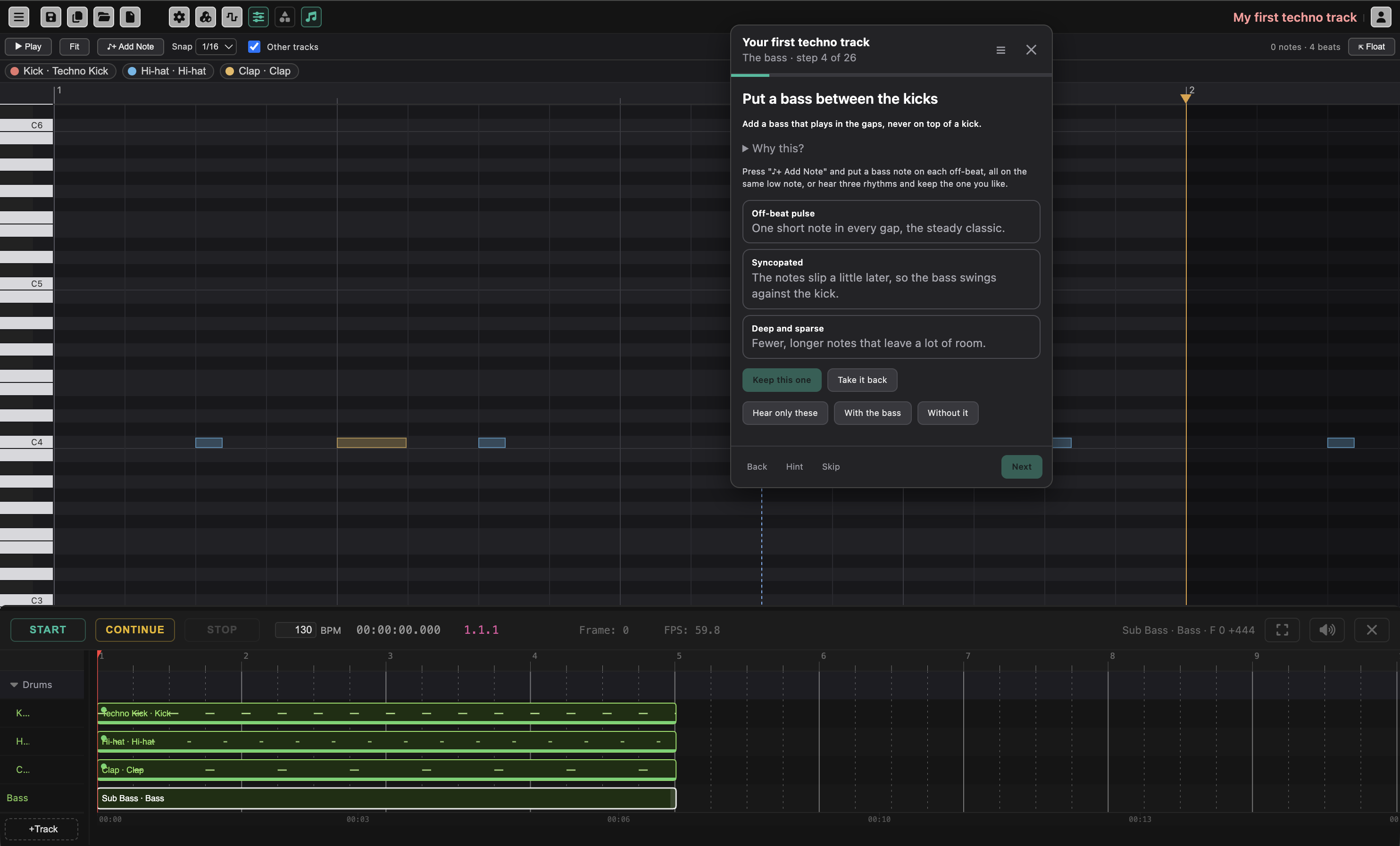
Each step has:
- A goal, one sentence saying what you are doing now.
- Why this?, a short explanation you can open or leave closed.
- A task, what to do in plain words, such as drawing the kick on the beats in the Piano Roll.
- Help buttons, which do the step, or part of it, for you. Some play a sound, and those switch audio on when you click them. Buttons starting with Show me play a short animated tour of the part of the screen that matters, for example the bars, beats and half-beats of the piano roll.
The coach watches your project, it never judges the music. When what you made does what the step asked for, the panel shows ✓ That works and Next lights up. You do not have to listen for any particular length of time.
Along the bottom of the panel:
- Back returns to the previous step.
- Hint gives a little help with the step. Hints come one at a time.
- Skip does the step for you and moves on, so later steps still have what they need.
- Next goes on once the step is done. Going on stops the Runsheet, so you start each step from silence.
- I’m happy with it appears on steps that are a matter of taste and that the coach cannot check, such as playing the track through.
When a step is done, there may be a challenge: an extra thing to try if you want more.
Trying Things Before Keeping Them
Some steps offer a few versions of one thing, for example different kick drums or different bass sounds, shown as cards. Click a card to try it. It is applied to your own project, so you hear it exactly as it would be. Hear only these plays just the tracks the step is about, and Hear everything puts the rest back. Steps that compare a part with and without something give you two buttons to switch between them.
Click Keep this one to keep the version you are trying. Take it back undoes it. If you click Next without choosing, the version you were trying is kept.
Everything the coach does is a normal undo step, so Undo in the editor works on it as on anything else.
Leaving and Coming Back
Closing the coach with ✕ keeps your place. It does not open again by itself, so you can work freely in the project. To continue, open Learn… again: lessons you have begun are listed under Carry on, with the number of steps done and whether they are in this project or another one. Open project and continue takes you to the right project if you are in a different one.
Your progress is saved with the project, and the browser also remembers which lessons you have started. If you save the project and open it later, Learn… will find it.
While you work, the address in your browser names the lesson and the step you are on, so if you refresh the page you come back to the same step. An unsaved project does not survive a refresh, so the lesson builds again what the earlier steps made. A project you have saved resumes by itself.
When you reach the end of a lesson, the last screen offers Next lesson, the next one in the same path. It clears the project and starts that lesson from scratch, so save first if you want to keep what you made. Finished lessons are listed under Finished. Look back through it goes through the steps again. If more chapters are added to a lesson later, it moves back to Carry on marked new steps added.
The ☰ button at the top of the coach opens the Learn window from inside a lesson.
The Project Is Yours
A lesson does not lock anything. You can edit the instruments, move events on the Runsheet, or open the node editor at any time. The coach recognizes the work you did, and if you changed something so a step no longer matches, Skip or the step’s help button builds a good-enough version. When the lesson ends, the project is a normal project: keep playing with it, or save it. See Instruments and Music for everything the lesson builds on.
Where Next
For a longer, project-based path through the editor, with six projects to build, see the Starter Guide. The Reference Manual covers every part of the editor in detail.