Instruments and Music
VerkLabs can make music as well as visuals. You build an instrument out of nodes, in the same kind of node editor you use for shaders, and play it from a Music track on the Runsheet: a single note, a chord, or a whole melody that you draw in a piano roll or bring in from a MIDI file. The sound is made live in your browser, so it follows the tempo, reacts to the project’s parameters, and can drive the visuals in the same project.
Learn it by doing. These lessons walk you through it, step by step, in the editor:
Start lesson · Follow the coach
Start lesson · Follow the coach
Start lesson · Follow the coach
Four ideas are enough to start:
- An instrument is a small node graph that turns a note into sound. You choose one from the built-in Library, or build your own.
- A Music event on the Runsheet plays an instrument. It plays either one Note (or a chord), or a note clip – a list of timed notes.
- Every note is played by its own copy of the instrument, so a chord is several copies, and a fast melody is many.
- The sound starts when the Audio button is on, like all sound in the project (see Media Bar).
If you would rather be guided, there are step-by-step lessons for making a whole track, for writing chords and a melody, and for building a synth of your own – see Lessons.
Your First Sound
- Click Manage Instruments in the Canvas Top Bar (it is also in the Drop-Down Menu, as Instruments…).
- Click Library…, find Piano, click Preview to hear it, and click Add. The piano is now in your project (Preview turns the sound on for you).
- In the Runsheet, add a Music track with +Track, then double-click an empty spot on it and choose Add Music.
- Double-click the new event to open its inspector, and choose Piano as the Instrument.
- Type C4 E4 G4 in the Note field. Press START on the Runsheet. You hear a C major chord, repeating for as long as the event lasts.
Change Note to Cmaj7, A3, or a number (60 is middle C), and start again. To play a tune instead of a chord, read on: Note Clips and the Piano Roll.
The Instruments Window
Click Manage Instruments in the Canvas Top Bar (or choose Instruments… in the Drop-Down Menu) to open the Instruments window, which lists the instruments in your project and how many events use each.
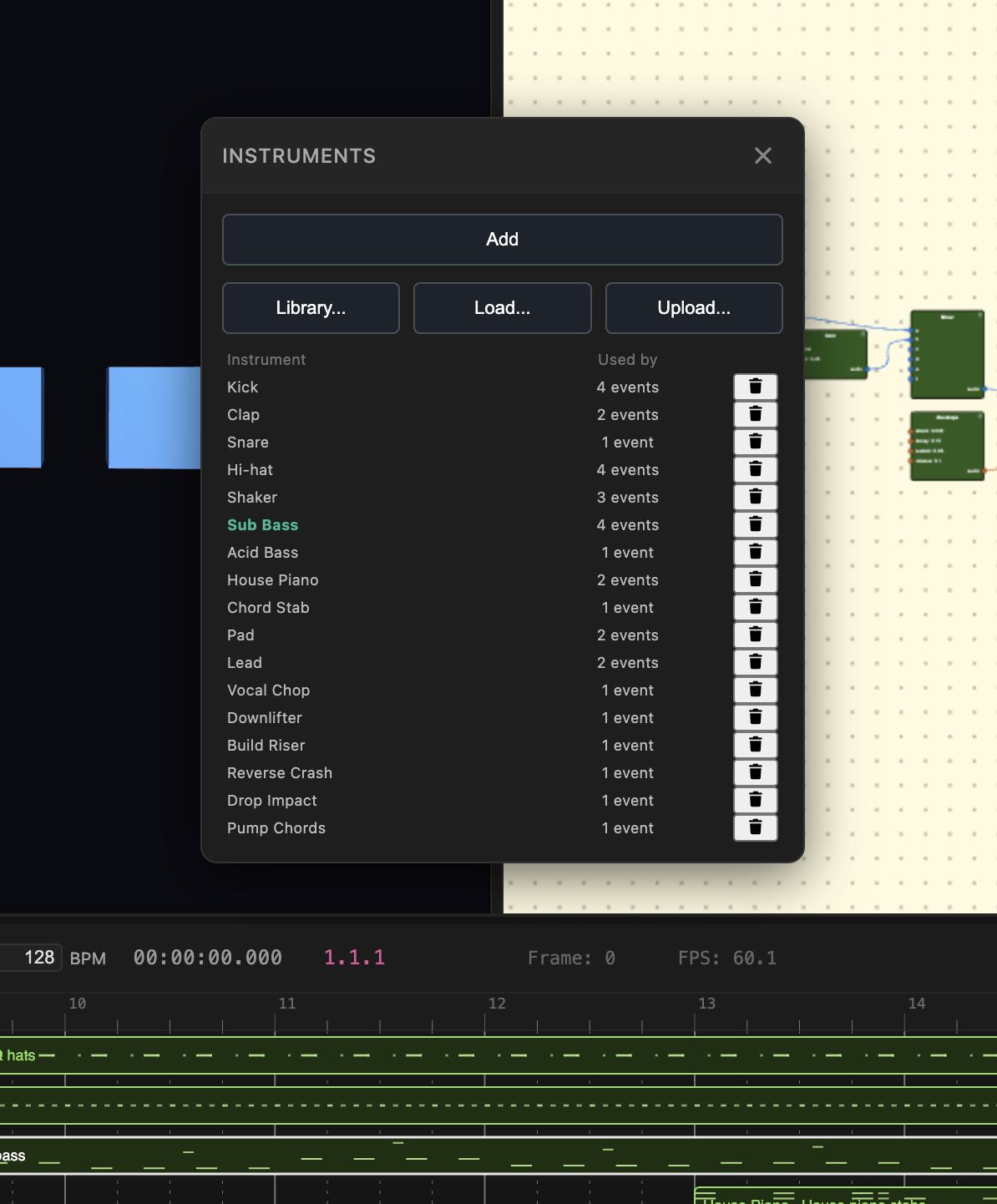
- Add makes a new, empty instrument and opens it in the node editor.
- Library… opens the built-in library (see The Instrument Library).
- Load… adds an instrument from your own files, or one that was shared with you (see Saving and Sharing Instruments).
- Upload… adds an instrument from a file on your computer.
- Load SFZ… builds a new instrument from an SFZ sample library already in your files – see Sample-Based Instruments.
- Click an instrument’s name to open it in the node editor. The trash button deletes it; events that used it are left without an instrument.
An instrument belongs to the project, and is saved with it. The window also lists the project’s note graphs (see Note Graphs), marked “(note graph)”, which you can open, rename, duplicate and delete in the same way; only instruments that make sound are offered in a Music event’s Instrument field.
The Instrument Library
The Library has more than a hundred ready-made instruments, grouped by kind: drums, keys, guitars, basses, strings, brass, woodwinds, voices, synths, percussion, effects, and sampled instruments. Type in the search box to filter them, click Preview to hear an instrument play its demo note or chord, and click Add to put a copy in your project. Adding an instrument twice gives you two copies (Piano and Piano 2) that you can change independently. Every instrument is described in Library Instruments.
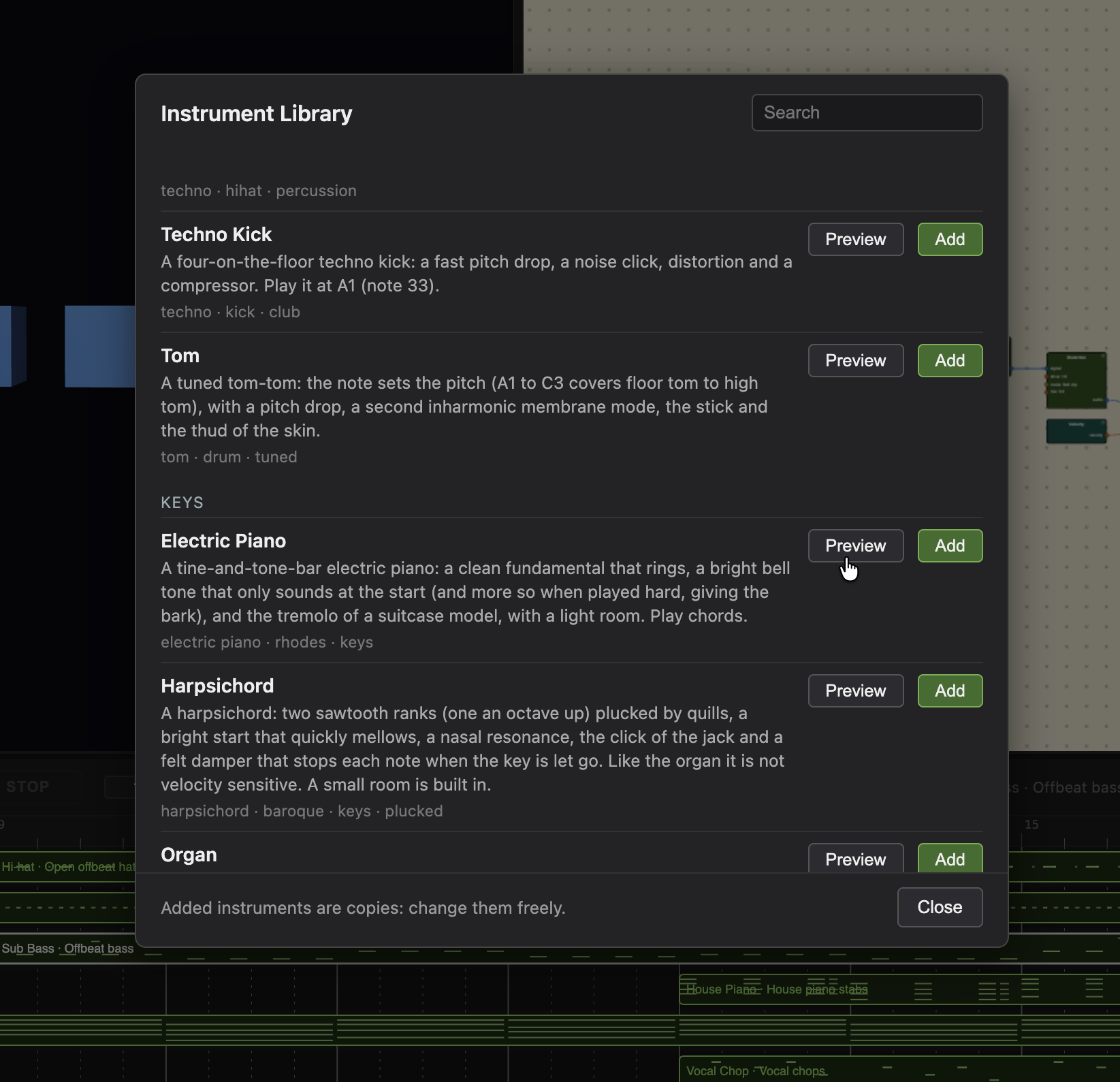
Every instrument in the Library, built from nodes or sampled, ends the same way: a single Gain just before the Instrument Output sets its overall level, chosen so that all of them come out at about the same loudness when played at the same velocity. A trumpet and an electric piano can then share a track without one disappearing behind the other. To make one louder or quieter in your project, change that Gain.
Each entry says what it is and how to play it: for example, that the Tom is tuned by the note you give it, that the Build Riser needs a note at least fourteen seconds long, or that the Pump Chords should be played again on every beat. Read the description of anything you add. The instruments in the Effects group work differently: they listen to other tracks instead of playing notes (see Instruments That Process Other Tracks). The Sampled Instruments group is different too – real recordings rather than synthesized sound, orchestral strings, brass, woodwinds, piano, timpani, a drum kit and a harmonica among them – see Sample-Based Instruments.
Playing an Instrument from the Runsheet
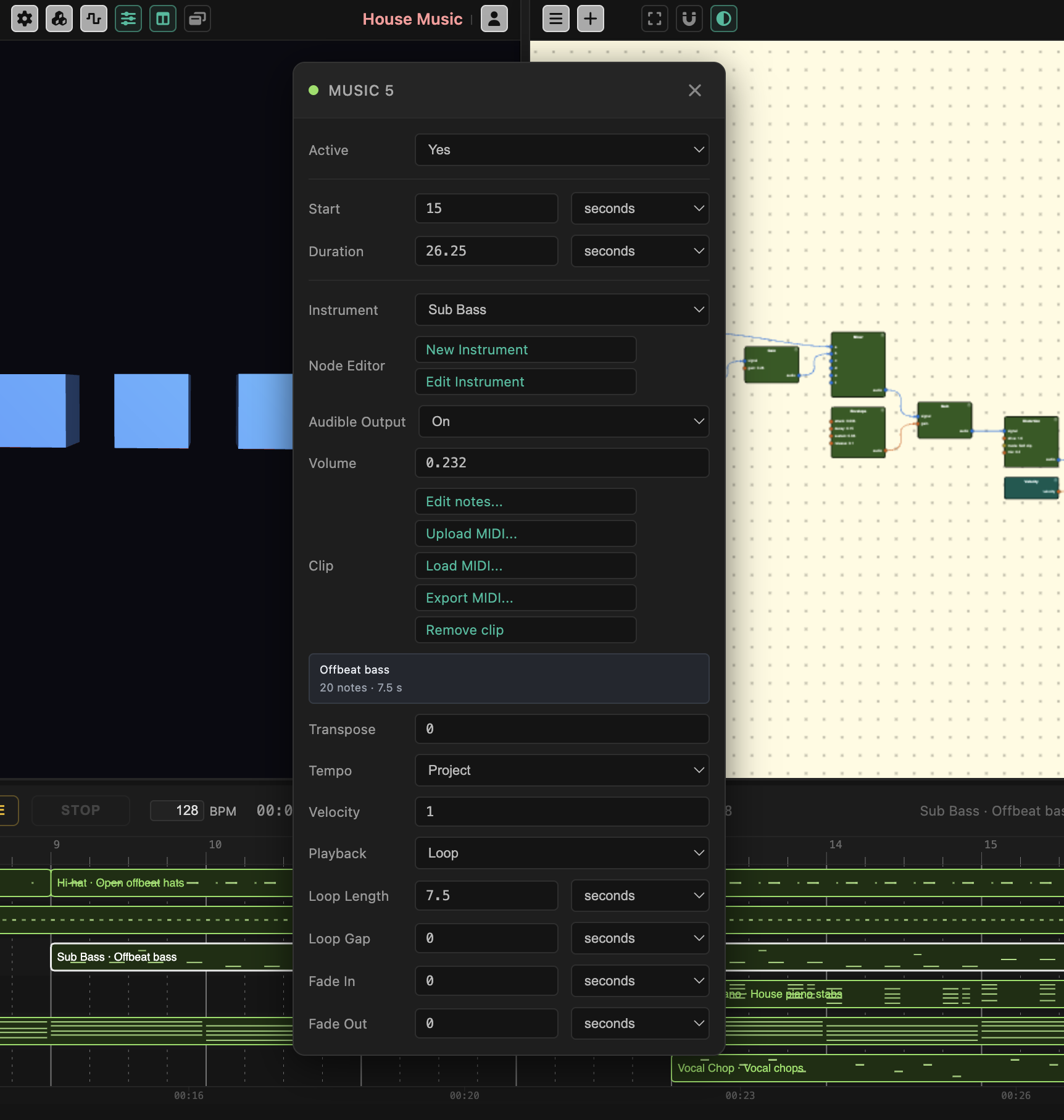
A Music event is set up in its inspector, like other Runsheet events (see Runsheet). The fields that are specific to it:
- Instrument – which instrument plays. (none) leaves the event silent.
- New Instrument – makes a new, empty instrument, opens it in the node editor, and uses it in this event. Edit Instrument opens the one the event uses.
- Notes – Written (the default) plays the notes in this event: the Note below, or a clip. Live means you play it while the event runs, from the keyboard, an on-screen piano or a note graph (see Instruments You Play). A Live event shows only the settings that make sense for it, plus Lowest key and Highest key (see Several Live Events) and a Note graph field.
- Note – the note or notes to play: a name (C4, F#3, Bb2), a number (60 is middle C, 69 is A4 at 440 Hz), a list (C4 E4 G4) or a chord symbol (Cmaj7, F#m7). A chord plays every note at once.
- Velocity – how hard the notes are played, from 0 to 1. Instruments can make harder notes louder, brighter, or both. The library instruments do.
- Audible Output, Volume, Playback, Loop Length, Loop Gap, Fade In and Fade Out – as for any event that plays over time (see Runsheet). With Loop on, the note plays again on each repetition, which makes a steady pulse: a one-beat Loop Length with a kick drum gives you four on the floor.
Note Clips and the Piano Roll
A note clip is a list of notes with their start times, lengths, pitches and velocities, stored in the event. It is how you play a melody or a drum pattern rather than a single chord. There are three ways to get one:
- Create clip… turns the event’s Note into a one-bar clip (a chord becomes notes played together at the start of the bar, one beat long) and opens the piano roll, where you add the rest.
- Upload MIDI… or Load MIDI… fills the clip from a MIDI file (see MIDI Files).
- Add Music from MIDI on a Music track’s right-click menu makes a new event from a file. Right-click on an existing event instead and the menu offers Import MIDI into this event…, Load stored MIDI into this event… and Notes from AI for this event…, which work on that event just like the buttons in its inspector: the new notes replace its own, and the AI dialog starts from its length, its role (a bass stays a bass) and its instrument.
- Notes from AI… (in the inspector) or Add Notes from AI… (on a Music track’s right-click menu) has the AI write the notes from a description (see Notes from AI).
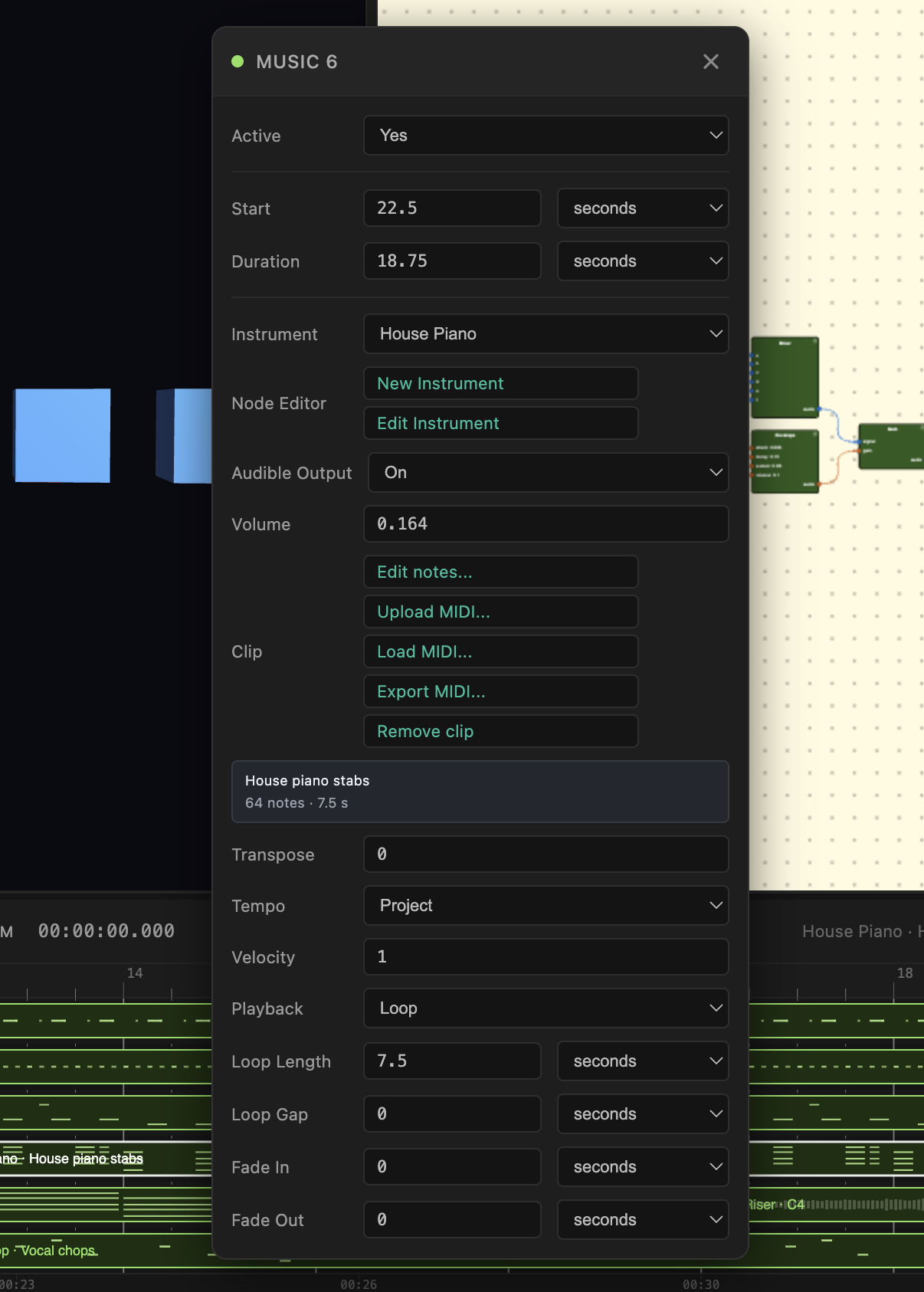
Once an event has a clip, its inspector shows Edit notes…, Upload MIDI…, Load MIDI…, Notes from AI…, Export MIDI… and Remove clip. The clip’s length is the loop length, so with Loop on it repeats. Two more fields are specific to clips:
- Transpose – moves every note up or down by semitones (from −48 to 48), without touching the clip.
- Tempo – File plays the clip at the tempo it was made at (a MIDI file’s own tempo, including tempo changes). Project makes it follow the project’s BPM, so changing the BPM speeds the melody up or slows it down with everything else. Clips you create yourself are set to Project. The Music event on the Runsheet shows which one it is and the tempo, for example Piano · Clip · File tempo 120 BPM or Project tempo 90 BPM. There is only one project BPM: clips set to Project follow it, clips set to File keep their own tempo, and events that share a clip share the setting.
Repeating a Clip
To play the same notes again later in the song, select the Music event on the Runsheet, press Ctrl/Cmd+C, move the playhead and press Ctrl/Cmd+V. The pasted event plays the same clip, not a copy of its notes: change a note in the piano roll and every repeat changes with it. Events that share a clip show ×3 (or however many) after their name, the inspector says Shared with 2 other events, and the piano roll’s title says shared by 3 events.
Each repeat still has its own Transpose, Volume, Loop and length, so one hook can be played higher in the chorus. To give one event a variation of its own, click Make unique in its inspector: it gets a copy of the notes that no other event shares. Upload MIDI… and Load MIDI… on an event also give it a new clip of its own, and leave the other repeats as they were. Notes from AI… is different: it rewrites the shared clip itself, so every repeat follows (each keeping its own Transpose, Volume and length).
The Piano Roll
Click Edit notes… to open the piano roll, with the notes of the clip laid out on a piano keyboard. It replaces the Scene Viewer, Side by Side with the node editor (now showing the event’s instrument instead of a shape’s shader), or Floats on top of everything – the same choice, and the same toggle button in its own title bar, as the Node Editor. Selecting a different Music event on the Runsheet, or a different instrument’s event via a ghost note (see Other tracks below), switches the piano roll to it in place, keeping whichever layout it’s already in.
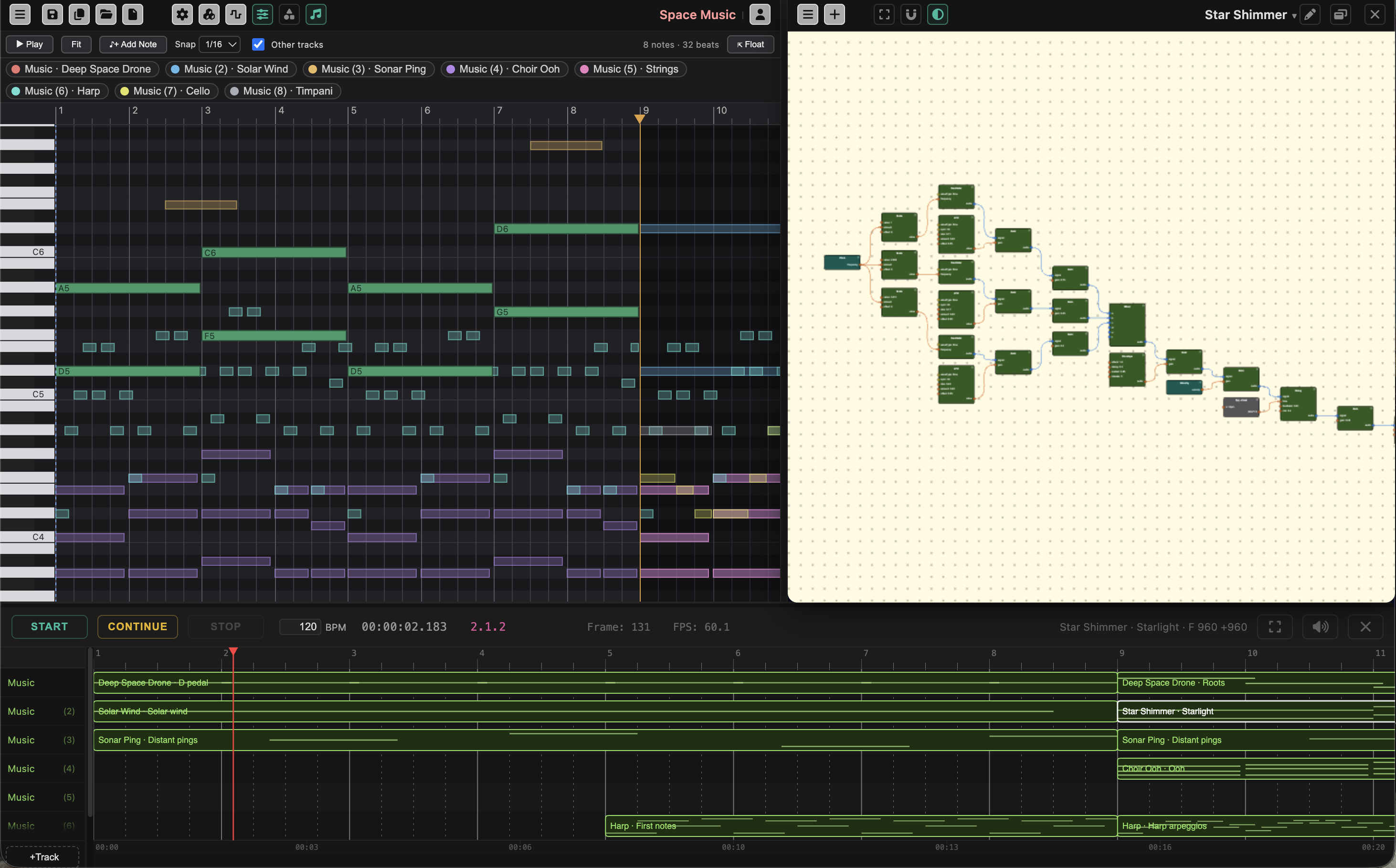
The keyboard is on the left, the time ruler (bars and beats) along the top, and the velocity lane along the bottom, with one bar per note.
Editing notes
- ♪+ Add Note, then click in the grid, to add a note there. It stays on for adding several notes in a row, until you click outside the grid or press Esc. A new note gets the length of the last note you made, or one grid step.
- Click a note to select it, Shift-click to add to the selection, or drag on empty space to select everything inside a box.
- Drag a note to move it in time and pitch. Drag its right edge to change its length.
- Drag a bar in the velocity lane to change a note’s velocity.
- Drag the amber marker on the ruler to change the length of the whole clip.
- Delete removes the selected notes.
With the keyboard
- Left and Right move the selected notes by one grid step, Up and Down by a semitone (with Shift, by an octave).
- Ctrl/Cmd+A selects all, Ctrl/Cmd+D duplicates the selection to just after it, and Ctrl/Cmd+C and Ctrl/Cmd+V copy and paste at the dashed cursor line. (Click on the ruler, or on an empty spot in the grid, to move the cursor.)
- Space starts and stops playback. Esc turns off Add Note mode if it’s on, otherwise it closes the piano roll.
Hearing it
- Click a key to hear that pitch. A note you add or move sounds as you place it.
- ▶ Play (or Space) plays the clip from the dashed cursor line, with the instrument of the event. The playhead moves along, and the keys of the notes that are sounding light up. Playing the Runsheet while the piano roll is open lights them too.
The view
- Snap sets the grid to a quarter, eighth, eighth triplet, sixteenth or thirty-second beat, or Off. It applies to placing, moving and resizing notes. The 1/8 triplet grid puts three steps in a beat, so the second of a pair of eighths falls two thirds of the way to the next beat: that is where a swung or shuffled rhythm puts its off-beats.
- Fit zooms to show all the notes.
- Ctrl/Cmd and the mouse wheel zoom in time, Alt and the wheel zoom in pitch, and the wheel alone scrolls the pitch (hold Shift, or scroll sideways, to scroll in time). This is also how pinch-to-zoom on a trackpad works, since it’s reported the same way as Ctrl/Cmd and the wheel – so a pinch always zooms in time; use Alt and a two-finger scroll (not a pinch) to zoom in pitch instead.
- Other tracks shows the notes of your other Music events faintly behind this one, each track in its own color, so you can write a melody that fits the chords. Click a track’s chip to show or hide it. The keys of those notes light up too, in their track’s color, while they play. Click a ghost note to switch the piano roll to that track’s own clip, right where you’re looking – the view doesn’t move, only which clip is editable (green) and which is a ghost changes, so you can compare and adjust neighboring tracks without losing your place. This is different from selecting a new event on the Runsheet, or opening a different clip with Edit notes…, which both zoom and pan to fit the newly opened clip.
- Key shades the rows of a key’s scale, so you can see which notes belong. Choose a note and a scale (major, minor, harmonic minor, the two pentatonics, dorian, mixolydian or lydian): the rows of the scale are lightened and named, the home note brighter, and a mark on the keyboard shows them too. The other rows recede, so a note outside the key is easy to spot. Choose Off to remove it. It is only a guide: nothing stops you from placing any note, and it is kept with the project.
Every edit can be undone with the normal Undo. The piano roll changes what the Runsheet plays right away, even while it is running.
Music Packs
A music pack is the audio part of a project in one file, to use the same music in another project. It holds every Music track with its notes, every Audio track with the reference to its file, the instruments the Music tracks play (the complete definitions: a sampled instrument keeps the references to its samples), the tracks and groups they sit on with their names, and which of them are muted. A MIDI file holds only the notes. A music pack holds everything you need to hear the same music.
To make one, open Settings and click the box button under Music Pack: Download the music as a music pack file saves a .music.json file to your computer, and Save the music pack to my files… puts it in your own storage, where it is listed as a music pack and can be shared like any file. Music played live on a keyboard has no written notes and is not included, and neither are the visuals.
To add one to another project, click the import button beside it, or right-click a Music track or event on the Runsheet and choose Add music pack from a file… or Add music pack from my files…. The pack’s tracks are added on free tracks at the playhead, or where you right-clicked. The project gets its own copies: the instruments (an instrument from the library that the project already has is used again), the tracks, the notes and the groups, so changing the original later does not change this project. The notes keep the tempo they were made at, so they sound the same in a project with another BPM; a project with no music of its own takes the pack’s BPM and beats a bar.
Audio tracks are only references: the audio files stay where they are stored, and play for anyone who can read them, so a pack that uses your private audio files is meant for your own projects.
MIDI Files
MIDI is the standard file format for notes: a MIDI file holds the notes of a song, one track for each part, but not the sound, which is why you choose an instrument for each track. MIDI files from the internet, from a notation program or from a keyboard recording all work.
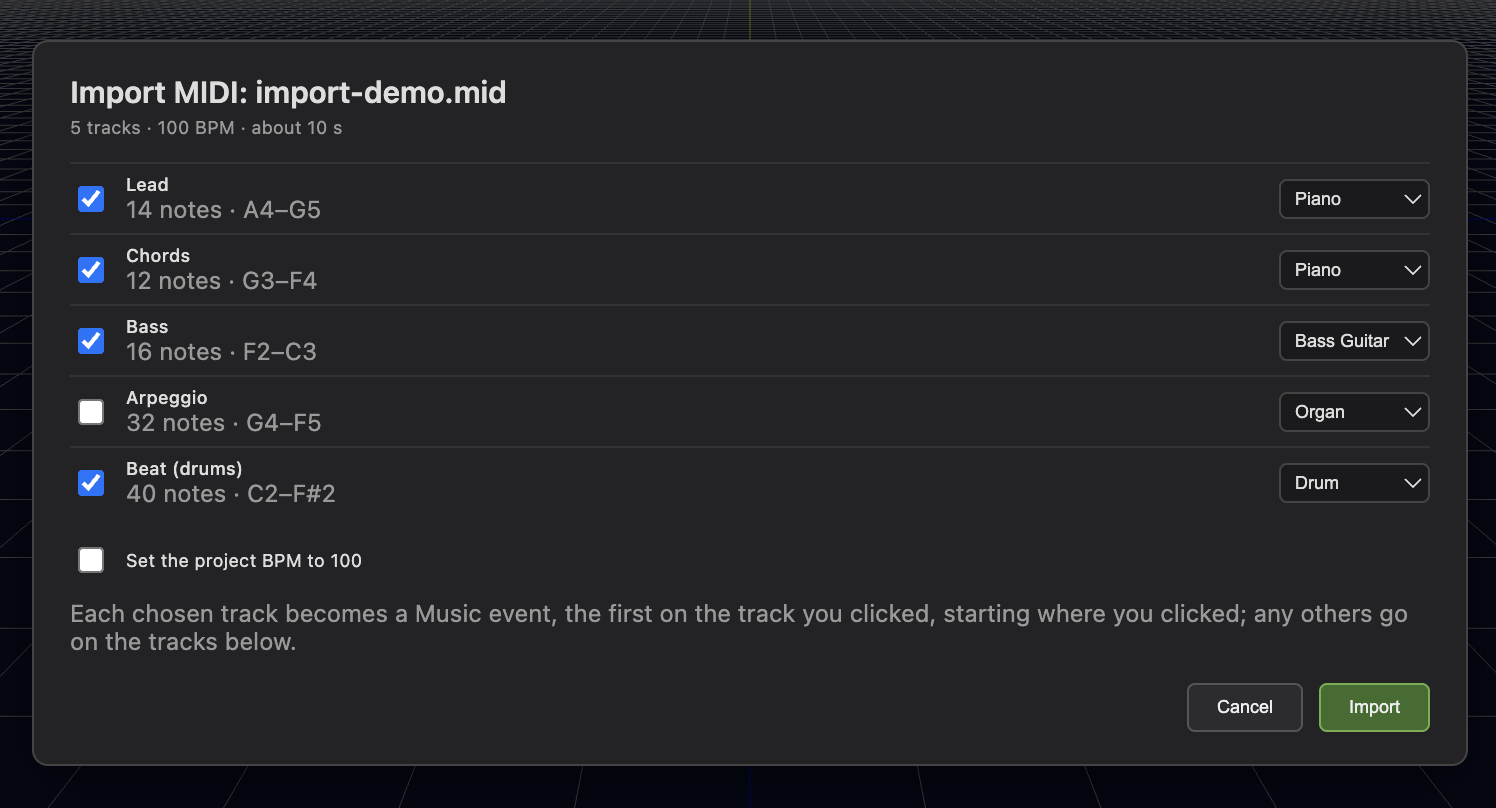
To bring one in, use Upload MIDI… (a file on your computer) or Load MIDI… (a file in your own storage, see below) in a Music event’s inspector, or Add Music from MIDI / Add Music from stored MIDI… on a Music track’s right-click menu. The Import MIDI dialog then shows the tracks in the file, with their number of notes and range:
- Tick the tracks you want, and choose an instrument for each. Each track starts on an instrument suggested from the Instrument Library, picked from the track’s name (Bass, Lead, Pad, Strings, Piano, Chords, Arp …) or, when the name says nothing, from the General MIDI program the file chose for it; a file name with techno, house, trance or the like favours the electronic instruments (an Acid Bass, a Supersaw Lead), jazz an upright bass, and a file or track name such as classical, symphony, sonata or Mozart favors the recorded orchestral instruments from the Sampled Instruments group (a solo trumpet, a grand piano, a cello). Some instruments have no synthesized version and always get a recording: a harmonica, an oboe, a bassoon, a tuba, a piccolo. The pick is only a starting point: change any track’s instrument and it stays as you chose. A library instrument you use is added to the project once, and reused by later imports. A drum track (MIDI channel 10) is handled differently, see Drums below.
- Set the project BPM to … copies the file’s tempo into the project.
- Start at the first note is offered when the file starts with silence (a count-in, a pickup, a bar of rest). It is ticked by default and cuts that silence off every chosen track by the same amount, so the tracks still line up with each other. Untick it to keep the file exactly as it was written.
- Where the events start. Events from Add Music from MIDI (and Add Notes from AI) start where you right-clicked, moved to the nearest beat, or to the very start if you clicked within a beat of it. An import that does not come from a right-click starts at the playhead (at the very start if it is within a beat of it). The Import MIDI button on an event replaces that event’s notes, and the event stays where it is.
- Every ticked track becomes its own Music event with a note clip: the first on the event or the track you started from, the rest on the tracks below. When that makes more than one track, they are put together in a group named after the file, so the whole song can be collapsed, muted or moved as one (a drum kit counts as one track, see below). A single track is not grouped, and neither is an import that replaces an existing event’s notes.
The notes are copied into the project. Nothing keeps a link to the file afterwards.
Drums
In a MIDI drum track every key is a different drum (36 is a kick, 38 a snare, 42 a closed hi-hat), not a pitch, and each drum instrument in the library makes one sound. So the import dialog takes a drum track apart: it shows one Drums row, with a row under it for each drum in the track (Kick, Snare, Hi-hat, Toms, Crash …), each with its own instrument. They become one Music event per drum, on tracks of their own, together in a Drums group (nested inside the file’s group when there are other tracks too), so you can mix, mute or position each drum, or the whole kit, separately. Ticking or unticking the Drums row does all of its drums at once, and you can change any drum’s instrument, as for any track.
The kit is chosen from the library: an electronic one (Techno Kick, 909 Snare, Clap) when the file name says techno, house, club, trance and the like, otherwise the real drum kit (the sampled Drum Kit, a separate row for the kick, snare, hi-hat, toms, crash and ride, all played by the same instrument). Each drum’s notes are rewritten for its instrument (the kick is played at the pitch its instrument expects, the toms are fitted to the Tom’s range, and on the real kit a drum it has no recording of, such as an electric snare or a pedal hi-hat, goes to the nearest one it has), and the Hi-hat plays an open hat’s long note open and a closed hat’s short one closed. Drums with no sound in the library (a vibraslap, say) are left out, and the dialog says how many notes that was.
To take music out again, use Export MIDI… on an event with a clip. Download as a MIDI file saves it to your computer, and Save to my files… puts it in your own storage.
To take the whole project out, open Settings and click the music button next to Download. Download all music as a MIDI file and Save all music to my files… write one MIDI file with every Music track you can hear: each track becomes one MIDI track, named after the track, with its notes where they sit on the Runsheet, including repeats, Transpose and event Velocity. A muted track is left out, and so is a track that was muted by Solo on another one, so the file is what you hear. A pitched instrument is written with its General MIDI sound (a piano, a violin and so on), a drum instrument on channel 10 with its General MIDI drum note, and the project’s BPM and beats a bar are written too. It holds the notes only: the sounds stay in VerkLabs, so choose instruments for the tracks in your DAW.
Smooth playback of Music events
An instrument is a live sound-building graph, and playing a clip with many notes, or a demanding instrument, means building one for every note while the project runs. On a busy page or with several heavy tracks that can stutter or cut out. To avoid it, VerkLabs pre-renders each Music event that has notes: in the background, a moment after you add or change one, the event is rendered once to audio, and playback then plays that audio instead of building the notes live. It plays through the same track as before, so Fade In/Out, Volume, Audible Output, track mute, groups, spatial position and everything that listens to the track (visuals, Runsheet Track nodes) work exactly the same.
A small message, Preparing music for smooth playback, shows while it renders; until an event is ready it simply plays live, and it switches over when ready. Rendering is real work (a demanding instrument can take about as long to render as it lasts, and a big project has many events), so it renders the events nearest the playhead first, and it pauses while the Runsheet is playing so that it never competes with the sound you are listening to: events that aren’t ready when you click Start play live, and Start tells you how many. For the smoothest result in a large project, let the message finish before you click Start.
Each Music event shows where it stands, as a thin strip along its lower edge and a dot at its left end: green means it is pre-rendered and plays as audio; amber and pulsing is being rendered right now; gray (a hollow dot) is waiting its turn; red could not be rendered and plays live; and a faint hollow dot with no strip means its instrument can’t be rendered ahead, so it always plays live. If events are green and playback still stutters, the cause is not the notes. If an event keeps turning gray or amber again and again, the browser’s console says what keeps changing it. Events that sound exactly alike share one rendering: repeats of a shared clip (see Repeating a Clip) with the same instrument, length, loop and settings are rendered once, wherever they sit on the Runsheet, so pasting another repeat, or moving one, costs no rendering at all. (A repeat of a different length is a different sound at its end, so it is rendered on its own.) Edit the notes or the instrument and the event plays live again until it has been re-rendered. Rendering uses memory (about 12 MB for half a minute of stereo sound), so the oldest unused renders are dropped first in a very large project.
Some instruments always play live, because what they play can’t be known ahead: instruments that read Param, time or Sequencer values, the microphone or another track’s sound, and Sample/SFZ instruments. If you want every change to an instrument heard at once while you tweak it, set Music Playback to Live in the Music section of the project settings; Pre-rendered (smooth) is the default.
Style of Play
Written notes sit exactly on the grid, which is how a machine plays and not how a person does. Style of Play (in the Music section of the project settings, next to Music Playback) changes how every Music event is played without touching the notes: the piano roll, the MIDI export and the saved project keep the notes as written. Playback and recordings use the style.
Each style shifts when notes start (swing, a part that sits ahead of or behind the beat, a small wobble, phrases that hurry and slow, chords that roll from the lowest note up), how loud they are (accents, a louder melody, a phrase that swells) and how long they ring (detached to legato).
- Styles: Natural, Jazz ballad, Jazz swing, Expressive classical, Romantic, Baroque, Tight funk, Laid back and Driving.
- Playful and extreme, to hear how much the playing changes: Robot, Drunk pianist, Rushing, Dragging, Rubber band, Seasick swing, Pizzicato, Legato goo, Sleepy and Hyper.
- Amount scales the style: 0 is as written, 1 is the style, up to 2 for more of it.
- Re-roll Randomness changes the small random parts (wobble, loudness, note length); the same roll plays every time until you re-roll.
Choose Straight (as written) to play the notes exactly as they are.
Notes from AI
Notes from AI… writes music for you from a description, such as a calm, slightly melancholic tune in a minor key. You need to be signed in. The AI returns notes, not sound, so every part needs an instrument. By default each part’s instrument is Let the AI choose (from the library): the AI picks the one from the built-in Instrument Library that suits the music (a cello for a suspense melody, an upright bass for bluegrass) and it is added to your project. Or pick one yourself for any part, either one of your project’s instruments or one from the library. Instruments added this way are reused the next time instead of being added again, and the tracks are named after them. You can edit the result afterwards in the piano roll like any other clip.
When you start it from an event that already has notes, the Length starts at that clip’s length (a clip of 4 bars gives 4 bars), and Start from the notes that are there is ticked: the AI is shown the current notes and asked to keep what works and change what you ask for, so you can use it to improve a part. Untick it to have the notes replaced with something new. The part starts as the kind of part the event is - worked out from its track and clip names, its instrument and how low its notes sit - so a bass event gets a Bass line part and the AI answers with a bass line rather than a tune; you can still change it. Either way the event keeps its own length on the Runsheet: a 4-bar clip that looped across 16 bars still does.
It works the way a small band does. The AI is asked for a plan: the form of the piece (sections, and how hard each is played), the chord progression, and the melody. VerkLabs then writes the rest itself from that harmony - chord voicings that move smoothly from one chord to the next, a bass line, arpeggios, pads and a piano’s left hand - playing busier and louder in the high-energy sections and sparser in the quiet ones. Last, every part is performed: notes get a little natural variation in timing and loudness, a bass sits slightly ahead and a melody slightly behind, gentle chords roll instead of landing in one block, and phrases swell and fall. Because all parts share one harmony they always fit each other, and a request is fast even for a long piece. To keep melodies from turning into scales, every request gives the AI a different random starting point (a rhythm to build the motif on, how the tune opens, the shape of the whole line), long runs in one direction are broken up with octave leaps, and a melody that is still too uniform is sent back once to be rewritten, so asking again gives a different tune.
The dialog has two modes:
- Several parts together writes a small ensemble in one go - by default a melody, chords and a bass - so the parts fit each other. Add, remove or change parts (Melody, Bass line, Bass, Chords, Pad, Arpeggio, Counter-melody, Piano (both hands), Drums) and, if you like, pick the instrument for each. A part is one voice: a Melody (or Counter-melody) is a single line the AI writes, Bass line is a bass the AI writes note by note, in the low register, with a rhythm of its own, Chords are rhythmic chord voicings, Bass, Arpeggio and Pad follow the harmony, and Piano (both hands) is a whole piano texture - left hand, chords and melody together - in a single part, which is the one to use if you only have one track.
- One part to fit what is there writes a single new part to go with the notes the other Music tracks play over the same bars, starting from where the new music will start. Use it to add a bass line to a piano track, or an answering melody.
Choose the Length in bars (the project’s BPM is used) and, if you like, a Key. The result is placed like an imported MIDI file: each part becomes a Music event with a note clip that follows the project tempo, the first on the event or track you started from (from the event’s inspector it replaces that event’s notes), the others on the tracks below. Undo takes the whole thing back, so asking again is cheap. The dialog remembers your last description.
While it writes, the dialog shows how long it has been going; a request can take up to about 100 seconds, but usually takes 10 to 20. If it fails or times out, the dialog stays open with what you typed, so you can click Try again. A piece can be up to 64 bars. The AI writes out only the melodic parts, so the limit counts those: at most 96 melody-bars (one melody of 64 bars, or three of 32), while chords, bass, arpeggio and pad parts do not count towards it. There is also a limit on how often you can use it each hour, since each request costs money. A Drums part is written from the plan’s energy, not by the AI: a quiet section gets a light pattern, a loud one a full groove, with a fill before each new section, a crash on it, and a last hit at the end. It is an electronic kit (four on the floor, claps, open hats) when your description sounds electronic, otherwise an acoustic one (backbeat, ride in the loud parts). Like an imported drum track it becomes one Music event per drum, in a Drums group, each on a library instrument; the instrument menu of a Drums part just says Drum kit. If the project already has a Drums group, the new drums go into it: a new Kick replaces the notes of the Kick that plays over those bars (the event keeps its instrument), a drum the group did not have yet gets a track of its own in the group, and the rest of your Drums group stays as it was. Tick Add the drums as a new group and keep the drums that are there to get a second group instead.
Building an Instrument
Add in the Instruments window, New Instrument in a Music event, or a click on an existing instrument opens the instrument editor. It is the node editor you know from shaders, in instrument mode: the Add Node menu lists the instrument nodes, and there is no object to configure. Nodes connect with gray wires for sound, and orange wires for control values.
The Build your own instrument lesson walks through this with a short riff playing on the instrument as you go – see Lessons.
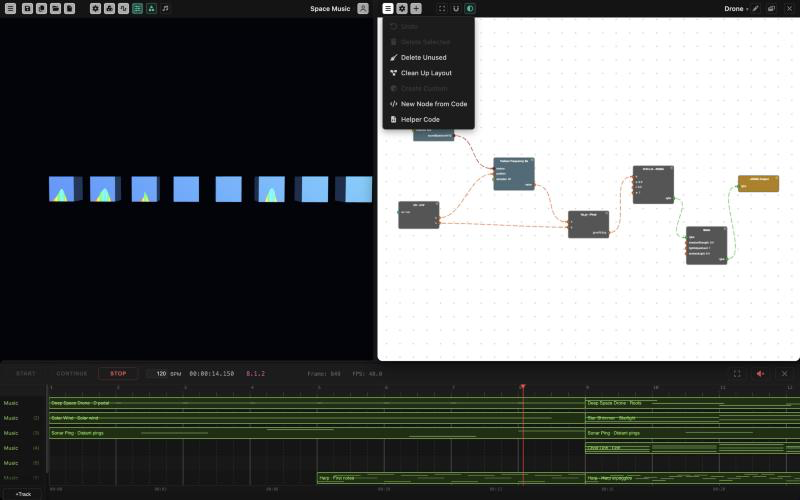
Every instrument ends at one Instrument Output node. Only what is connected to it makes sound. A simple instrument has three parts:
- A source – an Oscillator (a tone: sine, square, sawtooth or triangle) or a Noise node (for drums, breath and wind).
- A shape over time – an Envelope into a Gain: it starts silent, rises during the Attack, settles to the Sustain level, and fades away over the Release when the note ends.
- Some character – a Filter to make it duller or brighter, and effects such as Delay, Reverb, Distortion, Vibrato or Pan.
Where a note comes in, use the nodes in the Notes section of the Inputs menu: Pitch gives the frequency of the note, in Hz, ready to wire into an oscillator’s Frequency; Note gives the note number; and Velocity gives how hard it is played. A chord plays one copy of the instrument per note, and each copy has its own pitch and velocity. The Sequencer steps through a pattern of notes by itself.
The Math nodes, the Scale node and the LFO node let you connect things to each other: an envelope to a filter, an LFO to the pitch for vibrato, or the velocity to the brightness. An LFO set to Beats follows the project’s BPM, and its Phase (0 to 1) sets where in its cycle it starts.
To make an instrument respond to the rest of the project, use a Param node to read a parameter that the Runsheet sets (see Params in Runsheet), so a filter can open when a Params event says so.
The editor’s burger menu has Undo, Delete Selected, Delete Unused, Clean Up Layout (arranges the nodes from left to right with as few crossings as possible) and New Node from Code. For an instrument it also has the storage items described below.
Trying It
You can edit an instrument while a Runsheet plays. Notes that are already sounding finish with the old version, and every new note uses the new one. To hear a change without starting the Runsheet, click a key in the piano roll.
The Scope
The Scope shows what an instrument makes, as you build it. Click the chart icon in the Node Editor’s toolbar (it is there while an instrument is open) and a small panel opens that you can drag anywhere. Then play a note, from the Runsheet, the piano or the piano roll.
- The wave at the top is steadied at a rising zero crossing, so a steady tone stands still. Choose how much time it shows (5 to 100 milliseconds): a few cycles of a tone, or a whole envelope. Left is blue and right is orange when they differ.
- The spectrum below it has frequency on a log scale and loudness in dB. Overtones, the sidebands of FM and ring modulation, and a filter’s cutoff all show up as peaks and slopes.
- The numbers under them are the peak and RMS level in dB, and the strongest frequency. over 0 dB means the instrument makes more than full level at that point, before the track’s volume and the master: it matters only if nothing after it brings it down.
By default it looks at the Instrument Output. Click a node, and the Scope shows what comes out of that node. Click a wire, and it shows the signal on it (the node the wire comes from), and the wire is marked in white. Follow a sound down a chain this way: the carrier, the modulator, the product and the result. A node that makes a number and not a sound, such as an LFO or an Envelope, shows its value as a line.
The Scope is the way to find out what is wrong with a patch that is silent (is anything arriving?), too loud, off center, or not what you thought a node does. Two things to know:
- Only notes that start after you click are seen: the Scope gets a copy of each voice as it is built. An instrument being looked at is played live, note by note, and not from a pre-rendered copy, which costs a little more processing, so close the Scope when you are done.
- It looks at the notes of the instrument that is open. A track’s own instrument built on Bus Audio is not covered yet.
Sounds That Work Well
- Drums are mostly a fast falling pitch (for a kick or tom), or noise through a filter with a very short envelope (for a snare or hi-hat).
- A long, quiet ring is two envelopes added: a quick first drop and a slow tail. That is what makes a piano or guitar string.
- A note that gets brighter when it is played harder comes from wiring Velocity into the filter’s Frequency.
Look at the library instruments for examples: add one, open it in the editor, and see how it is made.
Keeping It Light
Every note is a separate copy of the instrument, so a fast, busy part with a heavy instrument can be too much for the browser. Two habits help:
- Put a Reverb as the last node, straight into Instrument Output, with a fixed Decay and Mix. The reverb is then shared by all the notes of the Music event, and costs one instead of one per note. A reverb in the middle of an instrument, or one that is controlled by another node, is built again for every note, and that adds up quickly.
- Prefer a few nodes to many, and shorter releases and tails.
If the browser cannot keep up, VerkLabs fades out the notes that have been ringing the longest, and the browser console says the audio thread is falling behind. If you hear notes disappearing in a busy passage, that is what is happening; simplify the instrument or the part.
Sample-Based Instruments
Instead of synthesizing a sound from oscillators and noise, an instrument can play back real recordings. Two nodes do this:
- The Sample node plays one recording, pitched up and down to fit whatever note it is given – good for a single sound you want played at any pitch, or one entry from a Sample Pack (a ZIP of several recordings, picked with the node’s Entry field).
- The SFZ node plays a whole instrument built from an SFZ file: many recordings mapped across the keyboard and velocity, so a played note gets the actual recording made near that pitch rather than one sample stretched over the whole range. Root note, loop points and velocity layers come from the file itself.
Both nodes still need the same Envelope-into-Gain-into-Instrument Output wiring described in Building an Instrument above; only the source is a recording instead of an oscillator. Gain on the node itself is a multiplier on top of the file’s own recorded level, separate from any Gain node further down the chain.
A single recording’s velocity rarely covers the full 0–1 range evenly, which can make quiet passages sound identical to loud ones. Wire a Velocity Curve node into the SFZ node’s Velocity input, and use its Detect Range from Runsheet button to fit the curve to both the notes that actually play the instrument and the file’s own real dynamic layers – see the node’s own description in Nodes Information for the full explanation.
The Fastest Way In: the Library
The Sampled Instruments group in the Instrument Library is a set of ready-made instruments already built this way – solo strings and string sections, brass, woodwinds, a grand piano, timpani and other percussion, a drum kit and a harmonica – so the quickest way to hear what a sampled instrument sounds like, or to start from one, is to add one from there like any other library instrument.
The recordings come from free libraries, used under their licenses: the orchestral instruments from the Sonatina Symphonic Orchestra (Creative Commons Sampling Plus 1.0), the Drum Kit from the MuldjordKit by Lars Muldjord and the DrumGizmo Team (Creative Commons Attribution 4.0, mixed down to stereo for VerkLabs), and the Harmonica from the Versilian Community Sample Library by Versilian Studios (CC0).
Using Your Own SFZ File
Click Load SFZ… in the Instruments window to build a new instrument from an SFZ sample library of your own – a ZIP file containing an .sfz file and its recordings, already uploaded to My Files. It creates the same SFZ → Envelope → Gain → Instrument Output node graph the library instruments use, ready to play. The SFZ node’s own Source picker (double-click the node) does the same thing for an existing instrument, to point it at a different file or upload a new one.
Instruments That Process Other Tracks
An instrument can listen to other Music or Audio tracks instead of, or as well as, playing notes. The Runsheet Track node brings the sound of a track into the instrument, where it can be filtered, given echo or reverb, or squashed by a pumping volume. The Microphone node does the same with the live microphone (use headphones, or it will howl).
The Runsheet Track node’s list is your project’s own: every Audio and Music track that is switched on, as many as you have, and every group with such tracks in it. Choosing a group listens to the mix of everything under it (taken after the group’s own mute), so one effect can process a whole section at once. A track or group you have disabled is not offered (a node already pointing at one shows it marked disabled). An instrument can’t listen to its own track, or to a group it is in; the node stays silent.
The Effects in the library work this way. Reverb Bus and Delay Bus put one room or one echo around several tracks at once, Lo-Fi Bus gives them an old-tape sound, and Sidechain Pump ducks them on every beat like a dance track. To use one:
- Give the bus its own Music event (it plays no notes; only its nodes matter), starting on a bar line and as long as the tracks it processes, with the same Loop Length.
- Set the tracks it listens to (the ones in its Runsheet Track nodes; the library buses use Music 2, 3 and 4, and you change them in the nodes) to Audible Output: Muted, so that you hear only the processed sound.

A Track’s Own Instrument
A simpler way to process a whole track, or a group, is to give it an instrument of its own: right-click the track’s row on the Runsheet and pick one of the project’s instruments. Its Bus Audio node is everything playing on that track (for a group, everything inside it), and its Instrument Output is what you hear, so no extra Music event and no muted tracks are needed.
The library has several made for this: Track Low Cut and Track Low Cut (Strong) (a high-pass filter that takes the low end out of a pad or lead and leaves it to the kick and bass), Track Reverb (one room around everything on the track or in the group) and Track Pump. A group can have one too, so putting a pad and a lead in a group lets you cut or reverb them together.
To make everything on a track wobble in pitch, build a track instrument of your own: a Bus Audio node into a Vibrato node (a rate of about 5 Hz and a depth of 20 to 40 cents is a gentle vibrato, a slow rate and a wide depth is a seasick drift) into the Instrument Output. Only the wavering sound comes out, so the pitch really moves, and the sound is delayed by a few milliseconds.
Track Pump is the one made for rhythm. It ducks the track on every beat, like the pump of a house or techno pad under the kick. An LFO set to Beats inside a track’s own instrument stays locked to the Runsheet’s beats: every time the Runsheet starts, the instrument is built again and its LFO starts on the beat the Runsheet is on, so the duck lands where the kick is, whatever the track’s position. Change the LFO’s Rate to duck every other beat (2) or twice a beat (0.5), and lower its offset and amount together (keeping their sum at 1) for a deeper pump.
Instruments You Play
An instrument can react to what you do while the project runs. The Mouse and Keyboard nodes (in the Live Input section of the Inputs menu) and the camera nodes (the Camera section: Hand Gesture, Gesture Data, Gesture Landmark 2D and 3D, Pose Data, Pose Landmark 2D and 3D) are the same nodes as in the shader graph, with floating point outputs, so they wire into any numeric input of an instrument. A few ways to use them:
- Wire Mouse’s x into an Oscillator’s Frequency, or into a Filter’s Frequency, to play the sound with the mouse. Its y and button outputs work the same way.
- Wire a Keyboard node into a Gain’s Gain to make a key a switch: the sound is there while you press the key.
- Wire a Gesture Landmark 2D for the index fingertip into a Filter to shape the sound with your hand, or use Hand Gesture as a switch, with a closed fist as the key.
The mouse is measured in the Scene Viewer, or in the whole window when the Scene Viewer is not on screen. The camera nodes use the project’s camera, the one the shader camera nodes use, and ask for it to be enabled when such an instrument plays. Hand and body tracking has a delay of about a tenth of a second, so use it to shape a sound rather than to time notes.
Live input only exists while someone is playing. Every one of these nodes has when not live values, which it gives whenever nobody is there to play: in a recording and an export, before the mouse has moved, and when no hand or body is in view. That keeps a recording the same every time. An instrument that uses these nodes is always played live, never rendered ahead.
For an overview of every live input - mouse, keys, hand, body, the presenter window and sending input between browsers - see Live Input.
Playing Notes Yourself
A Music event can also be played by you. Right-click a Music track and choose Add Live Music (or set an existing event’s Notes field to Live), pick its instrument, and while the Runsheet plays that event, the computer keyboard and a small piano on the Scene Viewer play its instrument (unless the event has a note graph: then only the graph plays it, see Note Graphs):
- A W S E D F T G Y H U J are the notes C to B, and K O L carry on to C, C# and D above. Z and X move the octave down and up. The keys are the same physical keys on any keyboard layout.
- Hold a key to hold the note; the instrument’s Envelope shapes it and releases it when you let go. Several keys make a chord.
- Click the piano to play with the mouse or a finger. The keys play whenever the Runsheet is running and a Live event is playing, with nothing to click first, unless you are typing into a field. That means A, W, S and the rest are not the editor’s shortcuts (Z, F, G, L, E, D and the digits) while a Live event plays: stop the Runsheet to use them or to type. Space still starts and stops it.
While the piano roll is open on an event, the piano plays that event itself, so a Runsheet Track node (and the track’s own analysis) hears what you play on it, even with the Runsheet stopped, and the piano is heard through that event’s track, so an instrument you gave the track (or a group above it) processes the notes you play, as it does the event; it stays audible a few seconds after you let go so reverb and delay tails finish. The same goes while you edit a track’s own instrument in the Node Editor: the piano plays the selected event through the instrument as you build it, so you hear what each change does.
Select a Live event and the piano roll opens on it, empty. Each note you play is drawn as it sounds, in gray, and fades away a second or two after you let go, so the roll is blank again when you stop. Nothing in it is saved. While you record, the notes are green and stay where they are; when the recording ends and its track has been made, they fade away, and the new track’s notes show as the other tracks’ notes do. Record is what keeps a performance. While the Runsheet runs with a Live event playing, the piano and its Record controls are there in the Node Editor, the piano roll and the Scene Viewer alike, and play the Live event.
The event’s own settings still apply: its track, Volume, Audible Output, Fade In and Fade Out, and any instrument on the track. Where the event sits on the Runsheet decides when you can play, so a project can open with a backing track, hand you a lead for the middle, and take it away again. If several Live events play at once, every one of them plays what you play.
A Live event itself is never rendered ahead, and is silent in a recording of the project or an export. To keep what you play, record it as a clip (see Recording What You Play).
The Piano
The piano on the Scene Viewer has two octaves and the C above them, with each C marked and the octave’s starting note (from C1 to C7) shown at its right. It lights the keys that sound, whether they are played with the mouse, a finger, the computer keyboard or a note graph.
The keys. While a Live event plays, the piano’s border is green and the computer keys play it, with nothing to click first. If you click into a text field they are typing again, and if you click a menu or checkbox on the piano panel it hands the keys back at once. The piano that appears for editing (below) is different: the editor’s shortcuts use the same keys, so there you click the piano first to give it the keyboard, and the first click anywhere else gives them back. Press Z and X to move the octave down and up.
The piano in the Node Editor and the piano roll. When the Node Editor is open on an instrument, the same piano appears and plays that instrument, so you can hear it while you build it, with the Runsheet stopped or running. It also appears whenever the piano roll is open on a Music event, and plays that event’s instrument, so you can try notes as you write them. (If both are open, it plays the instrument in the Node Editor.) The project’s Live events are quiet while you do, so you hear only the instrument you are editing. The piano goes away when the Node Editor closes, and a note graph (which makes no sound) has no piano.
Recording What You Play
While a Live event plays, the piano’s Record button turns what you play into a clip, so it can be edited, saved, exported as MIDI, and played back like any other part. It can also loop what you play and build it up in layers. The piano only has the Record button (it becomes Stop while recording) and Undo, so your hands stay on the keys: the other choices are in the project settings, under Music Recording, set before you play.
- Press START and let the Runsheet reach the part you want to play over. The keys are yours as soon as the Live event plays.
- Click Record. It is armed until the next bar line, and with Click ticked in the settings a metronome clicks on every beat, so the bar before the line is a count-in. The button says “Recording starts at bar N”.
- At the bar line the button turns red and says Stop. Play. Notes you play before the line are not kept.
- Let it run to the end of the Live event, or click Stop (see Length below). It ends at a bar line, and the notes become a new Music event on a track of its own, on the same instrument as the Live event and starting on the bar where you began. The message says how many notes and which bars. If several Live events were sounding, each gets its own track. Nothing is kept if nothing was played.
The piano roll of a Live event has no clip of its own, so it shows no end marker: the notes in it are only what you just played. Before you record, the roll already shows where a recording would go, by the Length setting: the whole Live event, or that many bars from its start, with the indicator going along it as the Runsheet plays. While you record, the roll is the recording: it starts at the bar where the recording starts, is as many bars long as the recording will be (to the end of the Live event, or the number of bars you chose), and its indicator goes along it. With Until I click Stop it grows as you play.
The new event is an ordinary one with an ordinary clip: click it to open the notes in the piano roll and edit them, or use Export MIDI… to save it.
Music Recording Settings
These are in the project settings, in Music Recording.
- Length is To the end of the Live event (the default), Until I click Stop, or 1, 2, 4 or 8 bars. By default the recording ends by itself at the end of the Live event, so what you play fills the event; you can still click Stop earlier, and it ends at the next bar line. With a number of bars it ends by itself after that many, so you can play in a count-in, a loop, and straight on to the next part, as on a loop pedal.
- Loop is to the end (the default), fill from bar 1 or off. To the end makes the new event repeat for as long as the Live event runs, so what you played keeps playing as soon as you stop, in the rhythm you played it. Fill from bar 1 also repeats it backwards over the earlier bars, in whole repeats so it stays in step with the bars you played it on, so that a Runsheet that loops has the part in every pass (fewer bars than one repeat can stay empty at the start). Off keeps a single pass.
- Layers. While it loops, change the sound and record again. Each recording is a new track, so the layers play together and can be moved, muted and edited one at a time. A recording uses the instrument of the Live event, so to play a different sound, change the Instrument of the Live event (click it on the Runsheet) before you record: a drum part, then a bass line, then a lead.
- Undo (the button next to Record on the piano) takes away the newest recording, every track it made. Click it again to take the one before. It does not change the Runsheet’s own Undo.
- Quantize (Off, 1/4, 1/8 or 1/16, the default) moves the start of each note to the nearest step of the grid, so a part played a little loosely lines up with the music. It keeps the note’s length. With Off the notes keep exactly the timing you played.
A recording ends early if the Runsheet stops or its playhead jumps back, such as at the end of a loop or when you move it; it keeps what was played in the whole bars it reached. Recording needs the Runsheet to be playing, and is only offered in the editor. The piano of the Node Editor does not record.
Open Live Events
A Live event you add from the menu has Length: Open. You don’t have to stretch it to a size before you play: it is active from its start for as long as the Runsheet runs, and its block on the timeline grows with the playhead. When you click Stop it keeps the length it reached, so what you played shows as a block. Run it again and it plays that length and keeps growing once the playhead passes it. Choose Fixed in its inspector, type a Duration, or drag the end of the block to give it a fixed length again.
Because an open event has no end, the run goes on until you stop it. While one is running the Runsheet shows Live open: runs until Stop next to the clock. If nothing has been played for a while, the run stops by itself: Stop an Open Run After in the project settings, under Music, sets it to 5, 15 (the default) or 30 minutes, or never. It counts only while nothing else is left to run, and anything you play (keys, pads, a note graph) starts the count again. Record with the length set to the end of the Live event records until you click Stop for an open event, since there is no end to record to.
Several Live Events
You can have several Live events on different tracks, each with its own instrument. While more than one is playing, every key plays all of them together, which layers a pad, a lead and a bass. To split a keyboard instead, give each event its Lowest key and Highest key in its inspector: an event plays only the keys in its range. A bass event with a highest key of B3 and a lead event with a lowest key of C4 are played by the left and right of the keyboard. Both settings start as Any. The range applies to the keys you play (the piano, the computer keyboard and a MIDI keyboard) and also to the keys that reach an event’s note graph, which gets no key outside its range.
Note Graphs
A note graph decides which notes a Live event plays, from the mouse, keys, a hand in front of the camera, a body pose, time or a Runsheet Param. It is a node graph like an instrument’s, but it makes no sound: it ends in Note Out nodes, and each of them plays a note on the event’s instrument.
A Live event with a note graph plays only what its graph plays. The piano, the computer keyboard and a MIDI keyboard do not play it directly. To play your own notes through the graph, use the Played Key node (below). To also have your keys play the instrument as they are, add a second Live event on another track, with the same instrument and no note graph: all active Live events sound together.
To make one, select a Live event, click Create Note Graph in its inspector and the Node Editor opens a graph that already works: a Played Key wired straight into a Note Out, so your keys still sound the event, now through the graph. Change it from there. Click Edit Note Graph to open it again, or click the small wired-nodes badge at the right end of the event on the Runsheet, or pick another note graph in the Note graph field (several events can share one). Note graphs also show in the Instruments window, marked “(note graph)”, where you can rename, duplicate or delete them.
- Note Out plays its note while its gate is 1 or more, and lets it go when the gate drops. If note changes while the gate is up, the old note is released and the new one starts. velocity says how hard. Use several Note Out nodes to play several notes at once - one for each finger, say.
- Played Key gives the key you are playing: note (the key), gate (1 while that key is held) and velocity (how hard it was pressed). Wire all three into a Note Out and your key plays through the graph; put a Scale Note or an offset in between to force a scale or transpose, and add more Note Out nodes for a harmony or a chord from one key. A graph that uses it runs one copy for each key you hold, and in each copy Played Key is that key alone, so a chord goes through the graph note by note, each note shaped on its own (a copy cannot see the other keys). (The Note, Pitch and Velocity nodes of an instrument are not offered in a note graph; Played Key replaces them.)
- Scale Note turns a number from 0 to 1 into a note of a scale (major, minor, pentatonic, the modes or all twelve notes), from a root note up a number of octaves. Wire a hand’s height into it and every position sounds right together.
- Threshold turns a value that moves smoothly into a switch, 1 at or above a level and 0 below it, to wire into a gate.
- The Mouse, Keyboard and camera nodes, Param, Time and the math nodes work as in an instrument. The Note Graph, Inputs and Math groups are in the Add Node menu, without the nodes that mean nothing in a graph that makes no sound: the sound and effect nodes, the audio inputs, and a Sequencer.
Ways to start from the example:
- The mouse. Add a Mouse: wire its y (the height) into a Scale Note’s position, the Scale Note into the Note Out’s note, and the mouse button into the gate. The height of the mouse picks a note of the scale, and the button plays it.
- A hand that plays a scale. Instead of the Mouse, use a Gesture Data (hand 0) wired into a Gesture Landmark 2D set to Index Finger Tip. Wire its y into Scale Note’s position, and use a Hand Gesture (say Closed Fist) for the gate: the height of your fingertip chooses the note, and making a fist plays it. Raising your hand moves up the scale.
- Keys that each play a note. Use one Keyboard node, one Note Out and a note number for each key you want: the key wired into the gate, and the note typed into note. Add a Threshold if you want a smooth value, such as the mouse height, to act as the key.
Chords in a Note Graph
A note graph that uses Played Key (or the Note, Pitch or Velocity nodes) runs one copy of itself for each key you hold, so a chord goes through the graph note by note. Hold C, E and G with an offset of 7 semitones wired in, and each key sounds with the note a fifth above it: three copies, six notes. A copy lives while its key is held and until its notes have been let go (a sustain pedal keeps it going), and up to 16 keys can be held at once. A copy cannot see the other keys, so a graph cannot ask what the whole chord is: it cannot, say, play only the lowest key an octave down. Only the Note Out nodes that depend on what you play are played for each key. A Note Out driven by something else - the mouse, a hand, time - is played once, and keeps playing when no key is held, however many keys you hold: a graph can have one Note Out from the key and another from the mouse. A graph with no Note Out that depends on what you play runs once, as it always has.
A note graph runs once for every frame, so notes can start up to a frame late, which is fine for gestures and expressive playing but looser than the keys for a tight rhythm. Like everything live, it is not part of a recording or an export unless you record it as a clip.
Playing from a MIDI Keyboard
A MIDI keyboard or controller (an Arturia MiniLab, for example) plays VerkLabs directly. It needs Chrome or Edge, which ask your permission once. Open Settings, find MIDI in the Music section and click Connect MIDI keyboard. The device’s name appears there, together with the last note or control you touched, so you can see it is working. VerkLabs connects again by itself next time.
-
Keys play the Music events set to Live (see Playing Notes Yourself) and the instrument open in the Node Editor, the same as the computer keyboard and the on-screen piano, which shows the keys you play. A Live event with a note graph is played only by its graph, which gets your keys through its Played Key node (see Note Graphs). With none of those, the keys still play: with the Runsheet stopped and no editor open they play the instrument of the Music event you last selected, or else of the first Live event. If there is neither, VerkLabs says so. (The computer keyboard does not do this, since its letter keys are the editor’s shortcuts.) How hard you hit a key sets the loudness, and the sustain pedal holds the notes.
-
A sustain pedal works as on a piano: while it is down, the keys you let go of keep sounding, and they are released when the pedal comes up (a key struck again while the pedal holds it sounds afresh). A recording keeps this: a note you held with the pedal is recorded as long as it sounded. To make the pedal do something more in an instrument, add a Sustain Pedal node (in the Live Input section of the Inputs menu): it is 1 while the pedal is down and 0 while it is up. Wire it into a Filter’s Frequency, a Reverb’s mix or a Gain, through an Envelope if the change should glide. In a recording or an export it gives its when not live value.
-
Pads play a drum instrument of their own, whether or not a Live event is playing. Choose it under Pads: the built-in Drum kit (added to the project the first time you hit a pad) or any instrument in the project. The sampled drum kit has a recording for only some of the keys a controller’s pads send (36 to 51), so with the kit the pads are laid out to make sixteen different sounds - kicks, a snare, hi-hats, toms, crashes and rides - instead of leaving some silent. Pads send their notes on one channel, usually 10, so set Pads on channel to match your controller, or to No pads to have the pads play like keys. The squares below show which pad you hit.
-
Knobs, faders, touch strips and the pitch bend are the project’s Controls. There are sixteen. Click Learn beside a control and move the knob, fader or strip on your controller: it is remembered, with the name you type, in the project, and a bar shows where it is. × clears it. Because the mapping belongs to the project, the same project works with a different controller once you learn its controls again.
-
Commands run the project from a pad or button: Start, Continue, Stop, Record / Stop recording and Undo recording. Click Learn beside one and hit the pad or button on the controller. It can be a transport button, a pad, or a Shift and pad combination: whatever the controller sends is remembered, with the port it came on (a controller’s transport buttons often use a port of their own). A learned button does its command and does not play a note. A button that sends a control change (most transport buttons) is matched by its number whatever port or channel it arrives on, so a project keeps working when the controller is named differently on another computer; a button that sends a note must come on the port it was learned on, because a transport button’s note and a key can be the same number. For an Arturia MiniLab 3 in DAW mode, Use the MiniLab 3 layout fills in Start (play), Stop, Record and Undo with one click. If a button seems to do nothing, hit it and look at the line under MIDI: it says what arrived, or “Unrecognized message” for something VerkLabs does not use.
To use a control in an instrument, add a MIDI Control node (in the Live Input section of the Inputs menu), choose which of the sixteen controls it listens to (the list shows the names you gave them, so renaming a control renames it in every node), and wire its value (0 to 1) into anything numeric: a Filter’s Frequency, a Gain, an Oscillator’s detune. A MIDI Note node does the same for one note or pad: gate is 1 while it is held and velocity is how hard it was hit. Like the other Live Input nodes they give their when not live value in a recording or an export, so what is recorded is the same every time. The same two nodes exist for visuals, in the Devices section of the Source Values menu of a shader graph: the same knob can open a filter and brighten a shape. There, until a control has been moved the node gives when not live.
Saving and Sharing Instruments
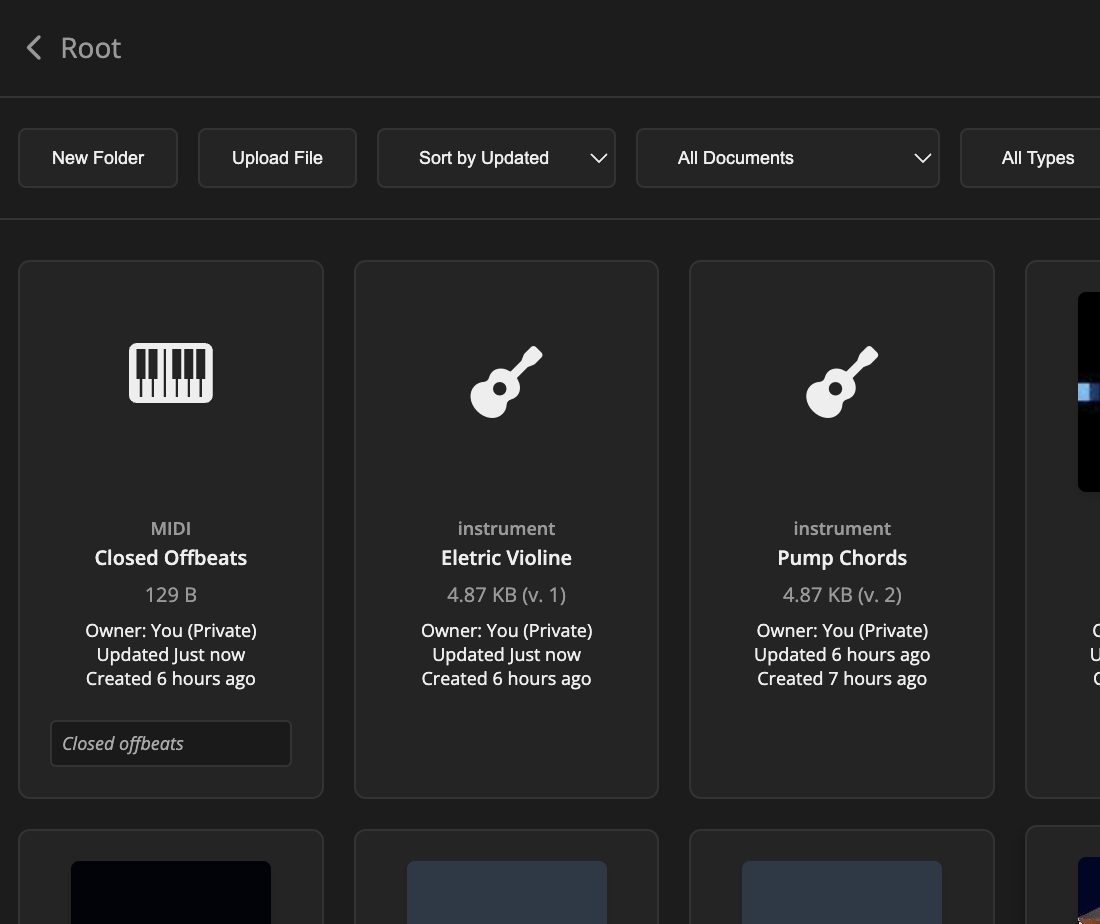
An instrument can be kept in your own files, and shared, like a project or an image. It is stored as a file of the type Instrument in My Files, and it follows the same rules as everything else there: private, public, or shared with named people.
The storage commands for an instrument are in the burger menu of the instrument editor. The ones that apply to the instrument you are editing are shown:
- Save to My Files… – asks for a name, description, folder and visibility, and saves the instrument as a new file.
- Save New Version of “name” – if this instrument came from a file of yours, saves your changes as the next version of that same file.
- Save as New File… – saves it as a different file.
- Update from Storage… – fetches the current version of the file this instrument came from and replaces the instrument with it.
- Download Instrument – saves it to your computer as a file (the same file Upload… reads).
To use an instrument from storage, click Load… in the Instruments window, and pick it in the file window, which is already filtered to instruments. It works the same way for an instrument that someone made public or shared with you.
A Copy, Not a Link
When you add an instrument to a project, from the library, from a file, or from storage, the project gets its own copy. This is different from an image or a sound, which a project refers to. So:
- If you later change the stored file, projects that already use it are not changed.
- If you change the instrument in a project, the stored file is not changed until you save it.
- A project always works, whatever happens to the stored file, even if it is deleted or made private.
That is why Update from Storage… exists: it is how you choose to bring a project up to date with the file, and it tells you which version the project has and which version it would get. It replaces the instrument with the stored one, so changes you made to it in the project are lost.
A MIDI file behaves the same way: its notes are copied into the event when you use it.
Music and Visuals
The sound of every Music track can drive the visuals, exactly like an audio file. The Runsheet Track nodes in a shader can choose a Music track and read its waveform or frequencies, so shapes can pulse to your own drum pattern. A track that is set to Muted is still analyzed, so you can let a drum loop move the visuals without hearing it.
Recording and Exporting
When you record a run, the Music events are included in the sound of the recording. Instruments are calculated in advance, note for note, as they sound live, so the recording sounds like what you heard while playing. See Recording in Runsheet and Project Settings.